How to Block Apps on Roku TV in 3 Simple Steps
To block apps on your Roku TV in three simple steps, start by enabling a PIN in your Roku account settings. This helps prevent unauthorized app installs and keeps control in your hands. It’s a quick way to add a security layer to your device.
Next, remove any unwanted apps from your home screen. This step keeps those apps out of sight and stops accidental access. It’s easy to manage what you see right when you turn on your TV.
Finally, head over to the Parental Controls menu. Here, you can enter your PIN and choose which apps to block or unblock. This gives you fine-tuned control over app access.
Following these steps will help you manage your Roku experience smoothly and safely. There’s even more to explore if you want to customize settings further!
Key Takeaways
- Remove unwanted apps from the Roku home screen to hide them from view. This helps keep your screen tidy and free from clutter.
- Enable a Roku PIN online to restrict app purchases and installations. It’s a simple way to make sure no one adds apps without your permission.
- Use the PIN to prevent unauthorized reinstallation of blocked apps. That way, once an app is removed, it stays off your device.
- Create separate user profiles to control app access for different users. This is handy if multiple people share the TV and want different content restrictions.
- Regularly review and manage installed apps to maintain approved content only. Staying on top of this ensures your Roku stays just how you like it.
Enable Roku PIN to Block Apps

How do you prevent unauthorized access to apps on your Roku TV? The simplest way is by enabling a Roku PIN. This PIN acts as a security barrier, ensuring only you or trusted users can add or purchase apps.
To set it up, head to your Roku account online, navigate to the PIN preferences, and select “Require PIN for purchases only” or “Always require PIN,” depending on your needs. Once enabled, anyone trying to add or access certain apps will need to enter the PIN.
This method doesn’t block apps outright but controls who can add or interact with new content. It gives you peace of mind without restricting your entire Roku experience. It’s a straightforward step to keep your TV usage secure.
Block Specific Apps on Roku TV

Although Roku doesn’t offer a built-in feature to block specific apps directly, you can still manage which apps appear on your TV by removing or restricting access to them.
Roku lacks direct app-blocking, but you can control app visibility by removal and access restrictions.
To control app visibility and usage, try these steps:
- Remove unwanted apps from your Roku home screen to keep them out of sight.
- Use the Roku PIN to prevent app reinstallation without your permission.
- Create separate Roku profiles to customize app access for different users.
- Limit app installation by adjusting your account settings on the Roku website.
- Regularly review installed apps to ensure only approved ones remain.
Give these a shot, and you’ll have better control over what shows up on your Roku.
Manage and Unblock Apps on Roku TV

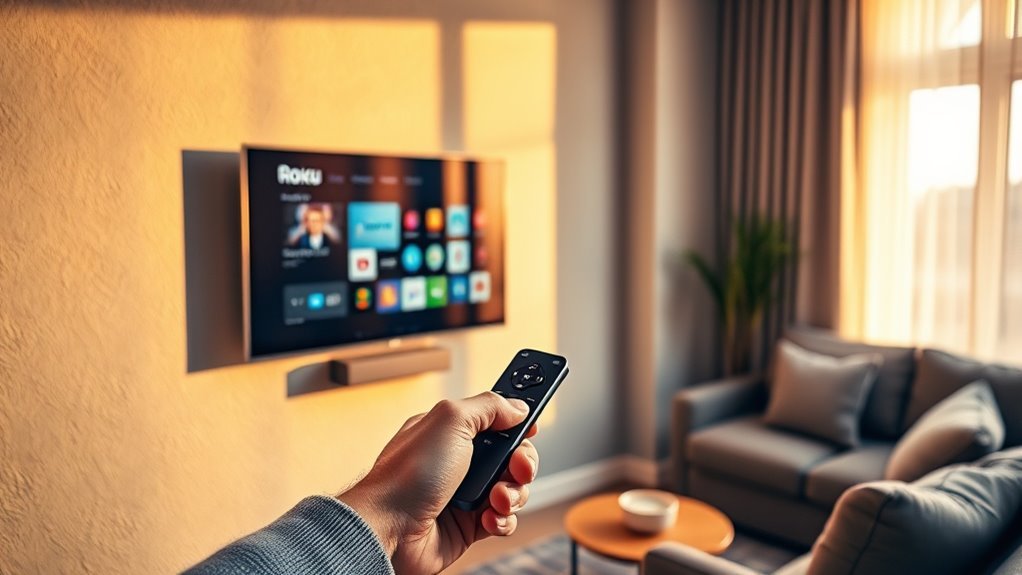
When you want to regain access to apps on your Roku TV, managing and unblocking them is straightforward. Start by pressing the Home button on your remote to open the main menu.
Next, navigate to “Settings,” then select “Parental Controls” or “Privacy.” You might be asked to enter your PIN—go ahead and do that.
From there, you’ll see a list of blocked apps or any restrictions you’ve set. Just choose the app you want to unblock, then select the option to remove the block.
If you’ve used a general content restriction, you can adjust the setting to a less restrictive level or turn it off completely. Once you’re done, exit the menu and restart your Roku TV if needed.
This way, you can easily control which apps stay blocked or become accessible again—super simple!
Frequently Asked Questions
Can I Block Apps on Roku Without Using a PIN?
No, you can’t block apps on Roku without using a PIN. Roku requires a PIN to restrict access or purchases. This helps you control app usage and prevents unauthorized changes or purchases on your device.
Does Blocking Apps on Roku Affect My Internet Speed?
Imagine a flowing river—blocking apps on Roku doesn’t dam your internet speed. You won’t notice any slowdowns since the device simply restricts access without affecting your overall connection or streaming performance.
It’s like putting up a gate on a side path, not narrowing the main road. So, your streaming stays smooth and uninterrupted.
Can I Block Apps on Roku Using a Mobile App?
No, you can’t block apps on Roku using the mobile app.
You’ll need to access your Roku device settings directly on the TV to create restrictions or use parental controls for app blocking.
It’s a bit old school, but that’s how it works for now!
Are There Parental Controls for Roku App Purchases?
Parental controls for Roku app purchases work like a lock on a treasure chest—you can set a PIN to prevent unauthorized buys. This way, you control what gets purchased and keep your account safe from surprises.
It’s pretty simple to set up, and once you have it, you don’t have to worry about accidental or unwanted charges. Just think of it as an extra layer of protection for your Roku account.
Will Blocking Apps on Roku Delete App Data?
Blocking apps on Roku won’t delete app data because Roku doesn’t offer a direct blocking feature. Instead, removing or restricting access to apps may hide them, but stored data usually remains unless you uninstall the app entirely.
Conclusion
Blocking apps on your Roku TV is easier than you might think, and it doesn’t require complicated tech skills. By enabling a PIN, you control what content gets accessed, making it perfect for families.
Even if you worry it’ll slow you down, managing and unblocking apps is quick and straightforward. With just a few taps, you keep your viewing experience safe and customized—giving you peace of mind without the hassle.
Using a PIN to block apps on Roku TV helps you protect your kids from inappropriate content and ensures your favorite shows stay private. It’s a simple way to maintain control over your streaming experience without any technical headaches. So, if you want to easily block apps on Roku TV and keep your family’s viewing safe and secure, it’s just a few quick steps away!