How to Delete an App on Vizio TV in 10 Easy Steps
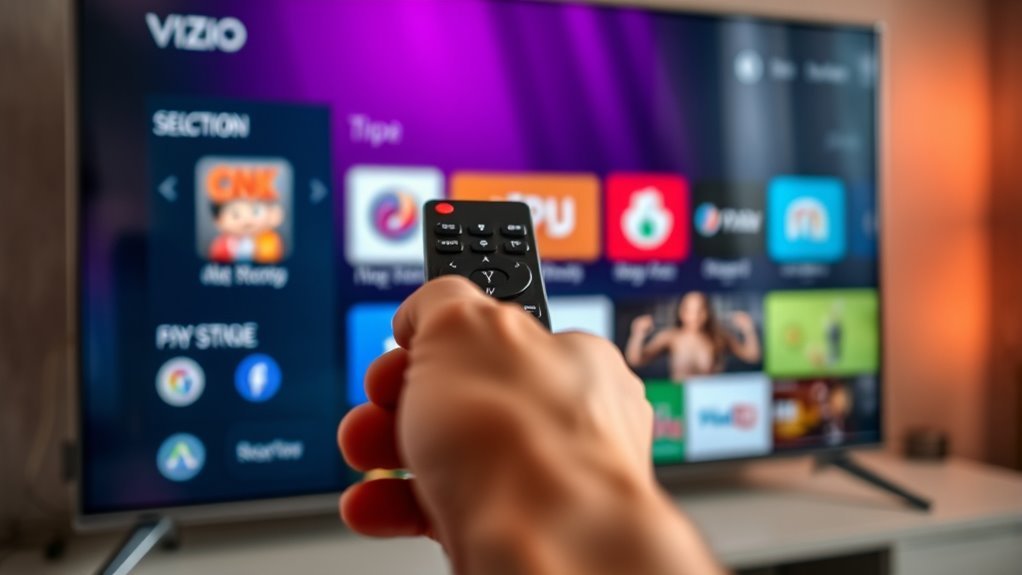
To delete an app on your Vizio TV, start by pressing the Home button on your remote to open SmartCast. This is where all your apps live, so it’s the first place you want to go.
Next, scroll through the apps to find the one you want to remove and highlight it. Once it’s highlighted, press the menu button or long-press the OK button on your remote to open the options menu.
If the Delete option is available, select it to remove the app. After that, confirm the deletion when prompted.
To make sure the app is fully removed, it’s a good idea to restart your TV. Keep in mind that pre-installed apps can’t be deleted, but you can hide them if you want to clean up your home screen.
By managing your apps and storage this way, you can keep your Vizio TV running smoothly and optimize its performance. There’s always more to explore when it comes to keeping your TV in top shape!
Key Takeaways
- Press the “V” or “Home” button on the remote to access the SmartCast Home Screen and locate the app you want to delete.
- Highlight the app icon, then press the menu or settings button, or long-press OK/Select to open app options.
- Check for a “Delete” or “Remove” option to confirm the app is removable; built-in apps usually cannot be deleted.
- Select the “Delete” option, confirm by choosing “Yes” or “Confirm” on the prompt to remove the app.
- Restart your TV by turning it off, unplugging for 30 seconds, then plugging it back in to finalize app removal.
Open the Vizio SmartCast Home Screen
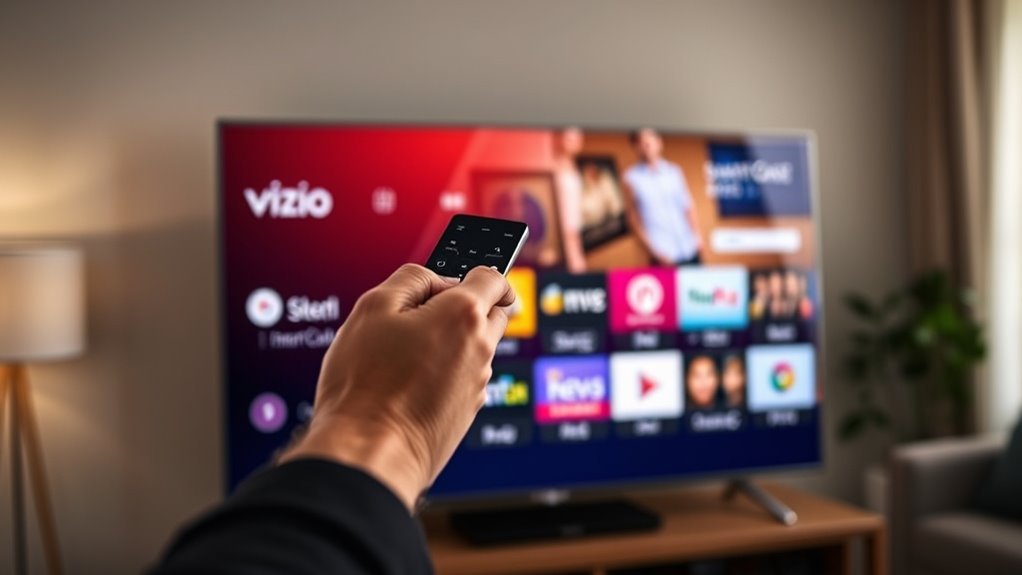
Wondering how to get started? First, grab your Vizio remote and press the “V” or “Home” button. This action will instantly bring you to the Vizio SmartCast Home Screen, where you can access all your apps and settings.
If your remote has a different layout, look for a button labeled “SmartCast” or “Home.” Once on the home screen, you’ll see a grid or row of app icons and options. This screen is the central hub for managing your apps, streaming services, and other features.
Make sure your TV is powered on and connected to the internet, as some functions may require it. Opening the SmartCast Home Screen is your first step toward managing or deleting apps on your Vizio TV.
Locate the App You Want to Delete
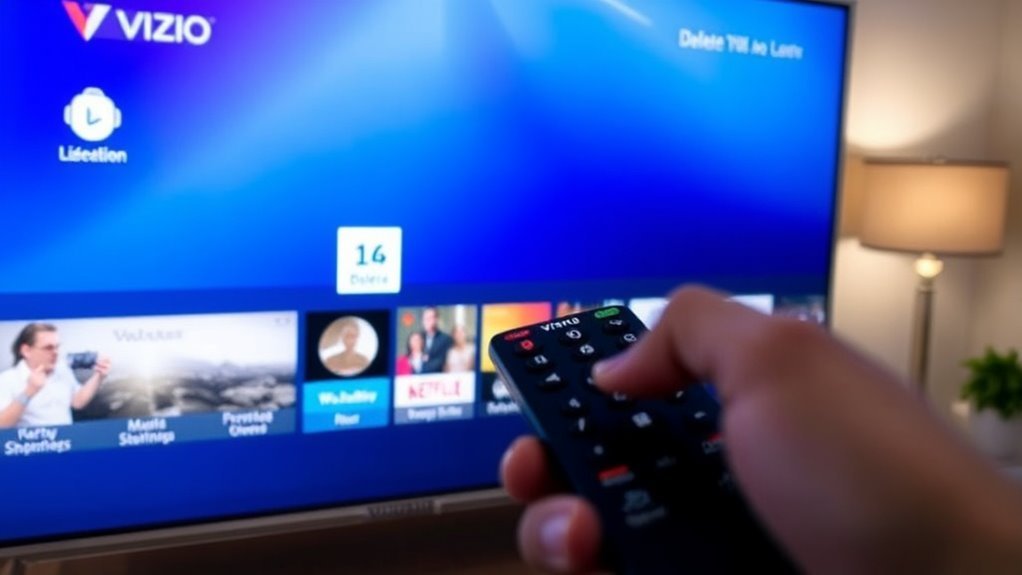
Now that you’re on the Vizio SmartCast Home Screen, start scrolling through the apps. Look carefully to find the app you want to delete among the installed applications.
Once you spot it, you’re ready to move on to the next step. Easy, right? Just keep an eye out as you scroll!
Navigate Vizio Home Screen
To locate the app you want to delete, start by turning on your Vizio TV and accessing the home screen. Press the “V” or Home button on your remote to open the main menu.
Once there, use the arrow keys to navigate through the available tiles and apps displayed on the screen. Look for the app you want to remove by scrolling left or right within the app row.
The apps are usually organized in a horizontal layout, so moving left or right will help you find the one you need. Take your time to carefully scan the list so you don’t miss the app.
Once you highlight the app, you’ll be ready for the next step to manage or delete it.
Identify Installed Applications
Once you’ve reached the home screen, focus on identifying the installed applications by scanning the app row carefully. This step is essential because you need to locate the exact app you want to delete.
Take your time to recognize the app icons and names displayed. It’s worth being patient here so you don’t miss anything.
To help you spot the app quickly: look for familiar app logos or names you frequently use. That way, you can narrow down your choices faster.
Also, check for any apps you rarely or never open. Those might be the ones you want to get rid of.
Use your remote’s arrow keys to scroll through the list if not all apps are visible at once. Keep going until you find the app you’re looking for.
Navigate to the App’s Options Menu
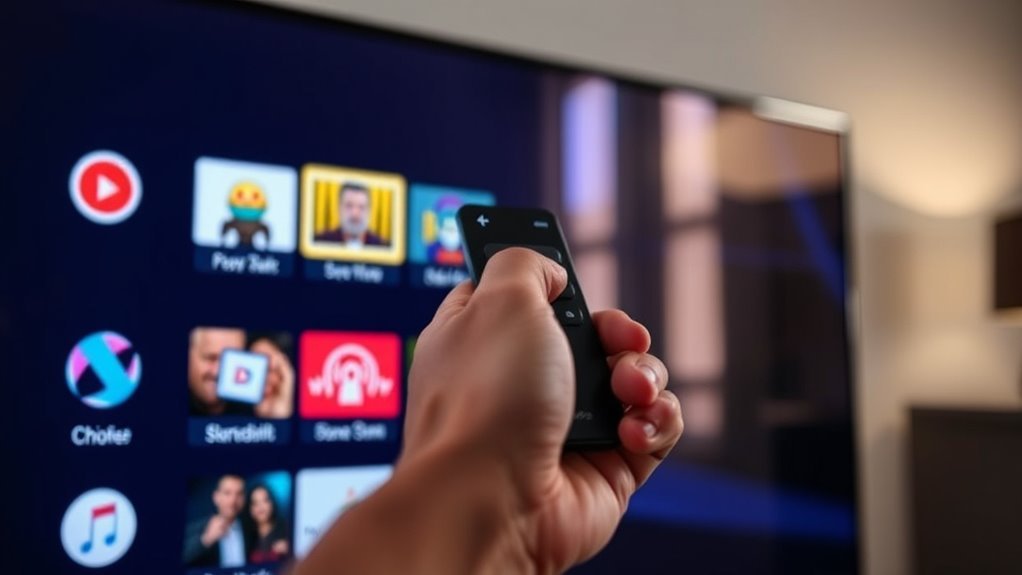
To delete an app, you’ll first need to access its options menu. Use your remote control to highlight the app, then press the menu or settings button.
This will bring up the app settings where you can find the delete option. Pretty simple, right? Just take it step by step and you’ll be done in no time.
Accessing App Options
How do you access the options menu for an app on your Vizio TV? First, you need to find the app you want to manage on your home screen or in the apps section.
Once you’ve located the app, you’ll want to bring up its options to proceed with actions like deleting or updating it.
Here’s how you can access the app options:
- Highlight the app icon using your TV’s navigation controls.
- Wait for a menu to appear or look for an on-screen prompt indicating options.
- Select the options menu, which usually appears as a gear icon or a contextual menu.
Accessing these options is essential before making any changes to the app. So, take a moment to ensure you’re in the right place.
Using Remote Controls
Although the process might seem straightforward, using your Vizio TV remote effectively is key to steering to an app’s options menu quickly. First, press the V button to open the Vizio SmartCast Home screen.
Use the arrow keys to highlight the app you want to manage. Once selected, press the Menu button or hold down the OK/Select button for a few seconds—this action opens the app’s options menu. If your remote lacks a dedicated Menu button, the long-press on OK usually works as an alternative.
From here, you can access various settings related to the app. Locating with precision assures you reach the options menu without unnecessary delays, streamlining the process of managing or deleting apps on your Vizio TV.
Identifying App Settings
Where can you find the app settings once you’ve opened the options menu? After pressing the options button on your remote, the app’s settings typically appear on the right side of the screen.
This menu lets you manage the app directly. To navigate it, look for:
- App Info: Displays version, permissions, and storage details.
- Uninstall: The option to remove the app from your Vizio TV.
- Clear Data/Cache: Helps resolve performance issues by resetting stored app data.
Use the arrow keys to highlight the setting you want and press OK to select it. Identifying these options quickly lets you manage or delete apps efficiently without digging through unrelated menus.
This keeps your TV running smoothly and your app list tidy. It’s pretty straightforward once you get the hang of it!
See If You Can Delete the App
Before trying to delete an app on your Vizio TV, you need to check whether the app is removable. Some apps come pre-installed and can’t be deleted, while others you’ve downloaded can be removed.
To find out, navigate to the app’s icon on your home screen or app list. Highlight the app and press the options or menu button on your remote. If you see a “Delete” or “Remove” option, you’re in luck—the app can be deleted.
If no such option appears, that app is likely built into the system and can’t be removed. Knowing this upfront saves you time and frustration.
Once you confirm the app is removable, you’re ready to proceed with deleting it using your Vizio remote. Easy, right?
Select Delete Using Your Vizio Remote
Grab your Vizio remote and navigate to the app menu where the app you want to delete is located. Use the arrow buttons to highlight the app, then press the options or menu button to select Delete.
Finally, confirm the deletion to remove the app from your Vizio TV. It’s pretty straightforward once you get the hang of it!
Locate Vizio Remote Buttons
- Menu: Opens app and system options
- Arrow keys: Navigate through the interface
- OK/Select: Choose and confirm your selection
Mastering these buttons gets you one step closer to managing your apps effectively.
Once you get the hang of them, using your Vizio remote becomes way easier. Just a little practice, and you’ll be navigating like a pro!
Navigate To App Menu
Once you’ve familiarized yourself with the remote buttons, navigate to the app menu by pressing the Menu button on your Vizio remote. This action opens the main settings interface where you can manage your apps.
Use the arrow keys to scroll through the options until you find the “Apps” or “App Manager” section. Press OK to enter it.
Inside the app menu, you’ll see a list of all installed applications. Use the arrow keys again to highlight the app you want to delete.
Once highlighted, look for the Delete option, which is usually accessible by pressing the Menu or Options button on your remote. Selecting this prepares the app for removal, letting you proceed with deleting it when ready.
Confirm App Deletion
How do you confirm the deletion of an app on your Vizio TV? Once you’ve highlighted the app you want to remove, it’s time to take action with your remote. Here’s what to do:
Press the “Delete” or “Remove” button on your Vizio remote. A confirmation prompt will appear on-screen; use the arrow keys to select “Yes” or “Confirm.” Then, press the “OK” or “Enter” button to finalize the deletion.
This confirmation step makes sure you don’t accidentally delete an app you still want. After confirming, the app will be removed from your TV’s menu.
If you change your mind, you’ll need to reinstall the app later. So, be sure before you confirm!
Confirm the App Deletion on Your Vizio TV
Before the app disappears from your Vizio TV, you’ll need to confirm its deletion to make certain you don’t remove it by mistake. Once you select the delete option, a confirmation prompt will appear on your screen.
Always confirm app deletion on your Vizio TV to avoid accidentally removing the wrong one.
This prompt usually asks if you’re sure about uninstalling the app. Use your remote to highlight “Yes” or “Confirm” and press the OK or Select button. If you change your mind, just choose “No” or “Cancel” to keep the app.
Verifying deletion ensures the app is removed from your TV’s storage, freeing up space and decluttering your apps list. Take a moment to double-check the app name before confirming, so you don’t accidentally delete the wrong one.
After confirmation, the app will be queued for removal. It’s a quick step but super important to keep things tidy!
Restart Your Vizio TV to Finalize Removal
Although the app removal process seems complete, you’ll need to restart your Vizio TV to guarantee the deletion fully takes effect. Restarting refreshes the system memory and assures any leftover files or cache related to the deleted app are cleared out.
Here’s how to do it efficiently:
- Press the power button on your remote to turn off the TV completely.
- Unplug the TV from the power source and wait about 30 seconds.
- Plug it back in and press the power button again to turn it on.
After the restart, your Vizio TV will run smoother, and you’ll notice the app is no longer accessible. This simple step finalizes the removal and prevents any glitches caused by residual data.
How to Remove Pre-Installed Apps
Wondering if you can remove the pre-installed apps cluttering your Vizio TV? Unfortunately, Vizio TVs don’t allow you to delete these built-in apps directly. They come embedded in the system, so you can’t uninstall them like you would with apps you’ve downloaded.
However, you can hide these apps from your home screen to keep things tidy. Just highlight the app you want to hide, press the options button on your remote, and select “Hide” or “Remove from Favorites.” This won’t free up storage but will declutter your interface, making navigation easier.
If you want to manage app space or truly remove apps, you’ll need to look into other solutions covered in the next section. For now, hiding is your best bet.
Manage App Storage on Your Vizio TV
Since you can’t uninstall pre-installed apps, managing the storage on your Vizio TV focuses mainly on apps you’ve downloaded. To keep your TV running smoothly, you should regularly check and manage these apps.
You can’t uninstall pre-installed apps, so focus on managing the apps you’ve downloaded to maintain storage.
Here’s how you can manage app storage effectively:
- Delete unused apps: Remove apps you no longer use to free up space quickly.
- Clear app cache: Some apps store temporary data; clearing this can recover storage without deleting the app.
- Restart your TV: Rebooting can help clear temporary files and improve overall performance.
Keep Your Vizio TV Apps Organized
When you keep your Vizio TV apps organized, you’ll find it much easier to access your favorites and maintain a clutter-free interface. Start by grouping similar apps together, like streaming services or games, so you can quickly find what you want.
Use the TV’s built-in options to rearrange app icons by dragging them into your preferred order. Regularly remove apps you no longer use to free up space and reduce clutter.
You can also create folders if your Vizio model supports it, which helps categorize your apps neatly. Staying on top of app updates ensures they run smoothly and don’t cause slowdowns.
Frequently Asked Questions
Can I Reinstall Deleted Apps on My Vizio TV?
Yes, you can reinstall deleted apps on your Vizio TV. Just open the app store, search for the app you want, and download it again.
It’s quick and easy to get your favorite apps back anytime. So, no worries if you accidentally delete one!
How Do I Update Apps on My Vizio TV?
Just like a knight sharpening their sword, you’ll want to keep your Vizio TV apps updated.
Head to the Vizio App Store, select the app, and hit “Update” to guarantee smooth, fresh performance every time.
It’s super easy and keeps everything running just right. Give it a try whenever you notice something’s a bit off or when you want the latest features!
What Should I Do if an App Won’T Open?
If an app won’t open, try restarting your Vizio TV first. Sometimes, a quick reboot is all it takes to fix the problem.
If that doesn’t work, check for updates or uninstall and reinstall the app. This can help clear out any glitches that might be causing trouble.
You can also reset your TV to fix persistent issues. It’s a bit more of a last resort, but it often does the trick if nothing else works.
Can I Transfer Apps Between Vizio TVS?
You can’t just scoop apps from one Vizio TV and drop them onto another like picking apples from a tree.
Instead, you’ll need to download each app separately on your new TV through the app store.
It’s a bit of extra work, but that’s how it goes with Vizio TVs. Just think of it as setting up your new device fresh!
How Do I Reset My Vizio TV to Factory Settings?
You can reset your Vizio TV to factory settings by pressing the Menu button. Then, browse to System and select Reset & Admin.
Next, choose Reset TV to Factory Defaults. Confirm your choice, and your TV will restore its original settings. It’s that simple!
Conclusion
Deleting apps on your Vizio TV is as simple as tidying up your living room—quick and satisfying. By following these easy steps, you’ll free up space and keep your apps organized, making your TV experience smoother.
Whether you’re removing downloaded apps or managing pre-installed ones, you’ve got full control. So go ahead, customize your Vizio SmartCast to fit your needs perfectly.
Enjoy a clutter-free entertainment setup and make your Vizio TV work just the way you want. Deleting apps on Vizio TV is a straightforward process that helps you maintain a clean and efficient interface. With these simple steps, managing your apps becomes hassle-free, ensuring you get the best out of your smart TV experience.