How to Find Your Vizio TV IP Address in 3 Simple Steps
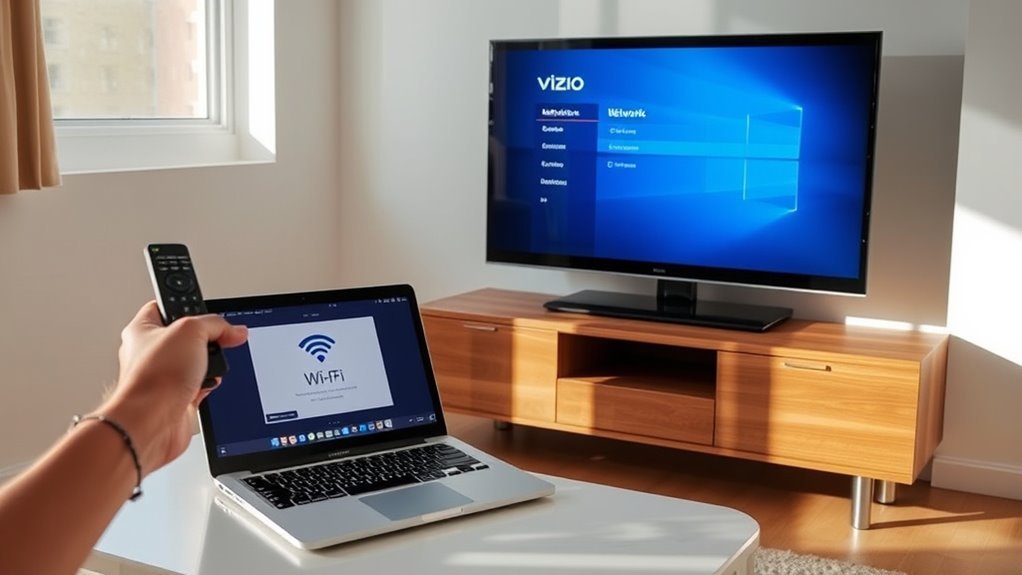
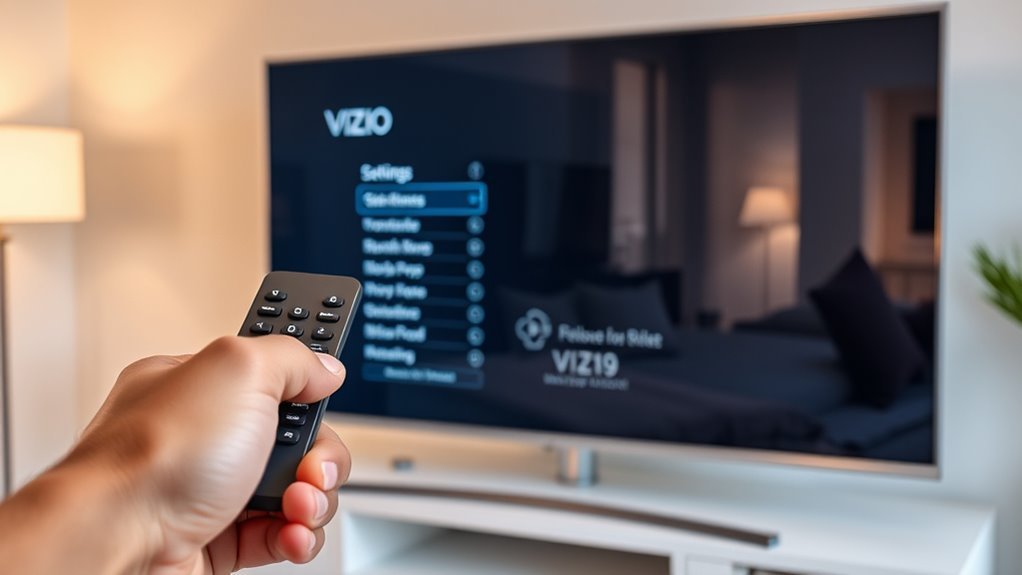
To find your Vizio TV’s IP address, start by pressing the Menu button on your remote. Then, head over to the Network section. This is where you’ll find all the info about your TV’s internet connection.
Next, select Network Status or just Status. Here, you can view your IP address along with other details like your MAC address and connection type. It works whether you’re connected via Wi-Fi or Ethernet, so no worries either way.
If your IP address isn’t showing up, try checking your connection first. Sometimes, a quick restart of your TV or router can help too.
Keep reading to discover easy troubleshooting tips and get more insights into your network setup.
Key Takeaways
- Press the “Menu” button on your Vizio remote to access the main settings. Then, navigate to the “Network” section in the menu.
- Select “Status” or “Network Status” to view connection details. You’ll see the IP address displayed alongside the MAC address and connection type.
- Just make sure your TV is connected via Wi-Fi or Ethernet for the IP to show up. Without a connection, you won’t find the IP address.
How to Find Your Vizio TV’s IP Address
Although finding your Vizio TV’s IP address might seem tricky at first, you can quickly locate it using the TV’s settings menu. Your IP address is a unique identifier that helps your TV communicate with your network.
Knowing it is useful for troubleshooting or setting up devices. You don’t need any additional tools—just your remote and the TV itself.
The IP address is typically displayed within the network or system information section of the settings. Once you access this area, you’ll see details about your connection, including the IP address assigned to your TV.
Keep in mind that your IP address can change if you’re using dynamic IP, but this method will always help you find the current one. So, it’s pretty straightforward once you know where to look!
Accessing Network Settings to Locate Your Vizio TV’s IP Address
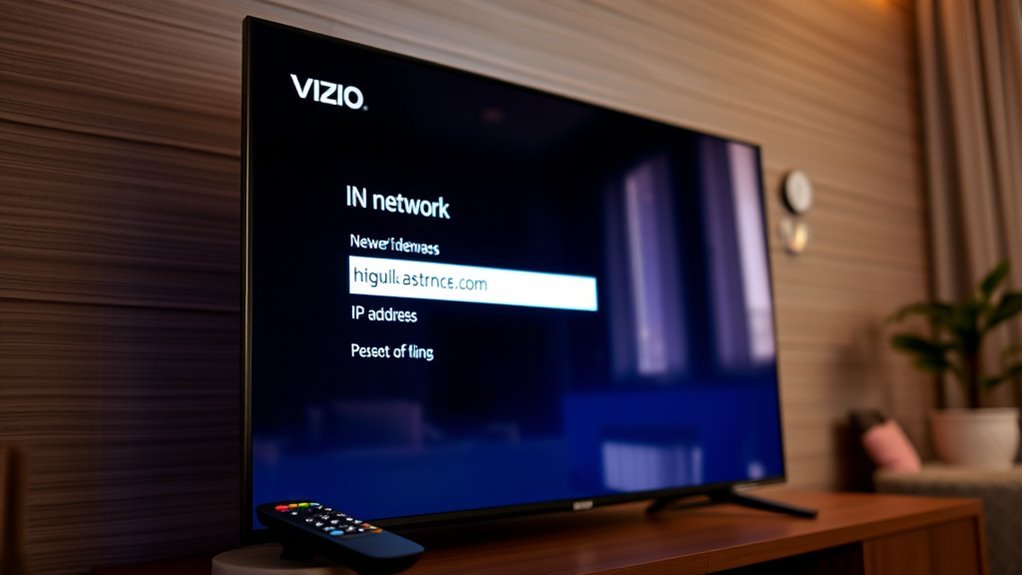
When you want to locate your Vizio TV’s IP address, start by accessing the network settings through the main menu. Press the “Menu” button on your remote, then navigate to the “Network” section.
Select “Status” or “Network Status” to view your current connection details. Here, you’ll find your IP address listed alongside other network information like the MAC address and connection type.
Select Network Status to see your IP address along with MAC address and connection type details.
If your TV is connected via Wi-Fi, make sure it’s linked to your network, or the IP address won’t appear. For wired connections, the IP address should show automatically once the Ethernet cable is connected.
This method works for most Vizio Smart TVs, letting you quickly find your IP address without needing additional devices or apps. It’s pretty straightforward and saves you some hassle!
Troubleshooting When Your Vizio TV’s IP Address Isn’t Showing
If you’ve checked the network status on your Vizio TV but don’t see an IP address listed, there are a few common issues to take into account. First, ensure your TV is connected to your Wi-Fi or Ethernet network properly. Sometimes, a weak signal or disconnected cable prevents the TV from obtaining an IP address.
Restart your router and TV to refresh the connection. Also, verify that your router’s DHCP server is enabled, as it assigns IP addresses automatically. If you’re using a static IP, double-check the settings for accuracy.
Finally, update your TV’s firmware, since outdated software can cause network glitches. If none of these steps work, resetting your network settings on the TV might resolve the issue. Give these a try, and you should be back online in no time!
Frequently Asked Questions
Can I Change My Vizio Tv’s IP Address Manually?
Yes, you can manually change your Vizio TV’s IP address by accessing its network settings. Just switch from automatic to manual IP configuration.
Then, enter the desired IP address, subnet mask, and gateway. After that, save your changes, and you’re all set.
Does My Vizio TV Support Both IPV4 and IPV6 Addresses?
You might think your Vizio TV only supports IPv4, but it actually supports both IPv4 and IPv6 addresses. This guarantees better compatibility with modern networks and future-proofs your streaming experience for upcoming tech.
Pretty cool, right? It means your TV is ready to handle whatever internet protocols come next without any hassle. So, you can just sit back and enjoy your favorite shows without worrying about network issues.
How Do I Find My Router’s IP Address for Vizio TV Setup?
You can find your router’s IP address by checking the network settings on your Vizio TV. Just head over to those settings, and you should see it listed there.
Or, if you prefer using your computer, open Command Prompt and type “ipconfig.” Then, look for the “Default Gateway” entry. That’s your router’s IP address. Easy, right?
Can I Assign a Static IP to My Vizio TV?
Imagine your smart home runs smoother with fixed IPs. Yes, you can assign a static IP to your Vizio TV by accessing your router’s DHCP settings, reserving an address, and matching it on your TV’s network setup page.
It’s pretty straightforward once you get the hang of it. Just make sure the IP address you reserve doesn’t conflict with other devices on your network. This way, your TV always gets the same IP, making connections more stable and reliable.
Will My Vizio Tv’s IP Address Change if I Reset the Router?
Yes, your Vizio TV’s IP address will likely change if you reset the router. This happens because it typically uses dynamic IPs assigned by your router’s DHCP.
If you want to avoid this, consider setting a static IP on your TV or router. That way, your TV keeps the same address even after a reset.
Conclusion
Now that you know how to find your Vizio TV’s IP address in just three simple steps, you’re all set to connect like it’s the Jet Age again! Whether you’re tweaking settings or troubleshooting, this quick guide keeps things smooth and straightforward.
Remember, a little patience goes a long way if the IP doesn’t show up right away. Sometimes it takes a moment for your TV to display the correct information.
Soon enough, you’ll be streaming and surfing without a hitch! Finding your Vizio TV IP address is key for network connections, system updates, and optimizing your smart TV experience. So, keep this easy method handy whenever you need it, and stay connected with ease.