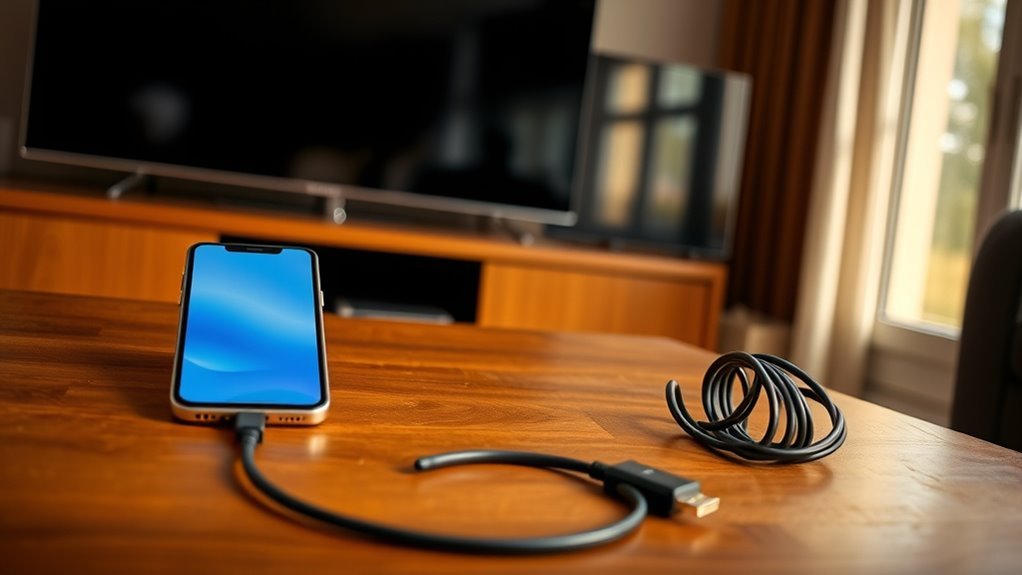
How to Connect a Phone to a TV Without WiFi in 7 Easy Steps
To connect your phone to a TV without WiFi, the first thing to do is check if both your phone and TV support compatible connections like HDMI, MHL, or Miracast. These options let you link your devices directly without needing an internet connection. Using an HDMI adapter or an MHL/SlimPort cable is a simple way to get started.
Once you have the right cable or adapter, connect your phone to the TV and then switch the TV input to the correct source. You can also try playing media through a USB connection if your TV supports it.
Another handy option is using a wireless display adapter, which creates a direct link between your phone and TV without WiFi.
Bluetooth and DLNA apps are worth considering too, especially if you want to stream audio or video without cables. If you hit any snags along the way, don’t worry—there are troubleshooting steps that can help you get everything working smoothly.
Try out these options to see which one fits your setup best!
Key Takeaways
- Use an HDMI adapter that’s compatible with your phone’s port to connect directly to the TV’s HDMI input. Then, just switch your TV to the correct source.
- If your phone supports MHL or SlimPort, you can use those adapters for wired video transmission. They work great for connecting your phone to the TV without any wireless setup.
- Another option is to plug your phone into the TV’s USB port using a compatible cable. Set your phone to file transfer mode, and you’ll be able to access media through the TV.
- You can also use wireless display adapters that create a direct HDMI connection without needing WiFi. Just enable screen mirroring on your phone, and you’re good to go.
- If you run into issues, try restarting both devices. Make sure all cables are securely connected and double-check that your TV is on the right input. This usually solves most connection problems.
Check If Your Phone and TV Are Compatible
Before you try connecting your phone to your TV, make sure both devices support the necessary connection methods. Check if your phone has a compatible port like USB-C or Micro-USB that allows video output.
Some phones support MHL or Slimport standards, enabling video transmission through their charging port. On the TV side, look for input options such as USB, HDMI, or even a dedicated screen mirroring feature.
Certain phones use MHL or Slimport to transmit video via charging ports; TVs may accept USB, HDMI, or screen mirroring.
If your TV supports Miracast, you might be able to connect without WiFi, but both devices must support it. Also, verify your phone’s settings to confirm screen casting or external display options are available.
Confirming compatibility saves you from buying unnecessary adapters or cables that won’t work with your devices. It’s always better to check first and avoid any hassle later.
Connect Your Phone to TV Using an HDMI Adapter
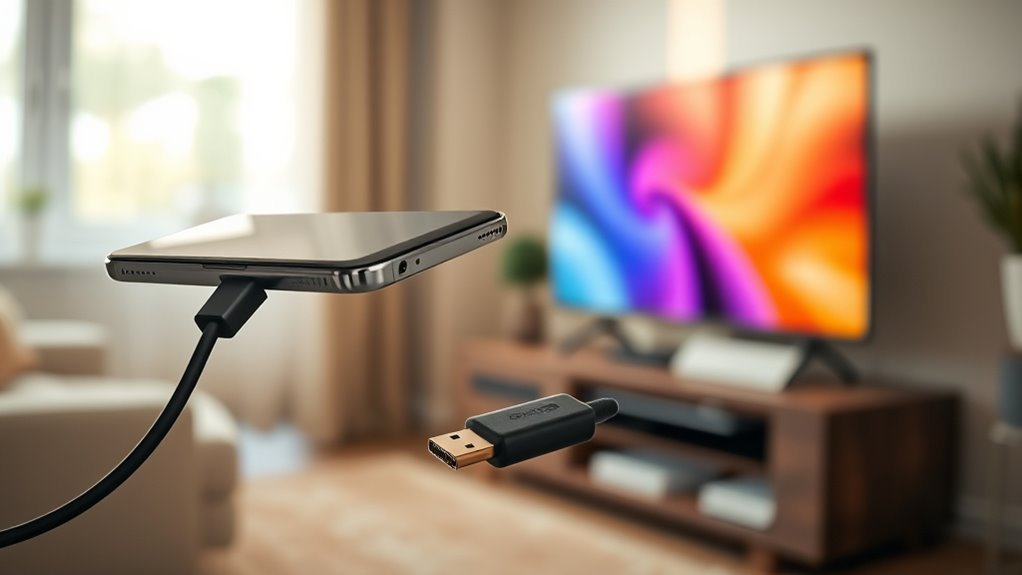
To connect your phone to your TV using an HDMI adapter, start by choosing the right adapter that fits your phone’s charging port. Once you have the adapter, plug it into your phone and connect the HDMI cable to your TV.
Then, switch your TV to the correct HDMI input, and your phone’s screen should appear on the TV. It’s pretty straightforward once you get everything plugged in. Give it a try!
Choosing the Right Adapter
When you want to connect your phone to a TV using an HDMI adapter, choosing the right one is essential for a smooth experience. Not all adapters work with every phone, so you need to take into account compatibility and quality to avoid frustration.
Here’s what to keep in mind:
- Phone port type: Check if your phone uses USB-C or Lightning.
- Adapter type: Choose between simple HDMI cables or multi-port adapters with charging support.
- Resolution support: Make sure it supports at least 1080p for clear video output.
- Build quality: Opt for adapters with sturdy connectors and good shielding to prevent signal loss.
Picking the right adapter upfront saves time and guarantees your phone’s display mirrors perfectly on your TV. It’s definitely worth a little extra effort!
Connecting and Configuring Devices
Although connecting your phone to the TV with an HDMI adapter might seem straightforward, ensuring a proper setup requires a few careful steps. First, plug the HDMI adapter into your phone’s charging port securely.
Then, connect an HDMI cable from the adapter to an available HDMI port on your TV. Power on your TV and switch the input source to the corresponding HDMI channel.
Your phone should automatically mirror its screen to the TV. If it doesn’t, check your phone’s display or connection settings and enable screen mirroring or HDMI output.
Make sure your phone is charged or connected to power, as video output can drain the battery quickly. Once connected, you can enjoy videos, photos, or apps on the big screen without relying on WiFi.
Mirror Your Phone Screen Using MHL or SlimPort Cables
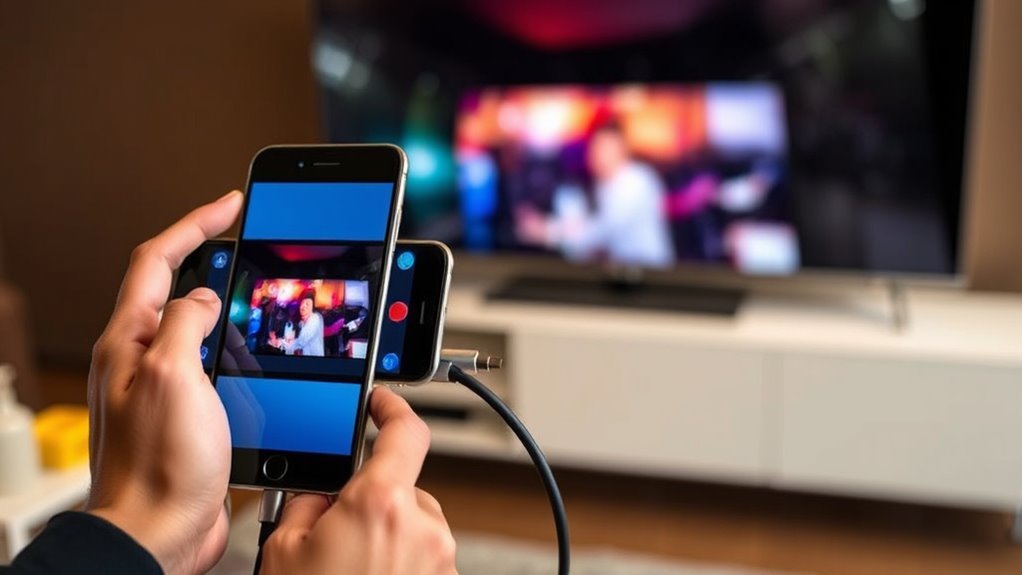
You can mirror your phone screen using MHL or SlimPort cables, but first, make sure your device supports these connections. MHL cables work with many Android phones, while SlimPort offers a similar option for others.
Setting up is simple—just connect the cable from your phone to the TV’s HDMI port, and you’re ready to go. It’s a quick way to share your screen without any hassle!
MHL Cable Compatibility
Wondering how to mirror your phone screen to a TV without relying on WiFi? MHL (Mobile High-Definition Link) cables offer a simple wired solution, but compatibility is key. Not all phones support MHL, so you need to check before buying a cable.
Here’s what to take into account for MHL cable compatibility:
- Your phone must have an MHL-supported micro USB or USB-C port.
- The TV should have an HDMI input to connect the MHL cable.
- Some manufacturers disable MHL on certain models, so verify your phone’s specs.
- You might need a powered MHL adapter to supply extra power during connection.
Confirming these points ensures a smooth, lag-free screen mirroring experience without WiFi. Easy, right? Just double-check, and you’re good to go!
SlimPort Connection Setup
When connecting your phone to a TV without WiFi, SlimPort offers a versatile alternative to MHL cables by supporting various video outputs through a single port.
To set up SlimPort, first check if your phone supports it—this info is usually in the specs or user manual. You’ll need a SlimPort adapter that converts your phone’s micro-USB or USB-C port to HDMI, DisplayPort, VGA, or DVI, depending on your TV’s available inputs.
Connect the adapter to your phone, then plug the appropriate cable into your TV. Switch your TV to the correct input source, and your phone screen should mirror instantly.
SlimPort delivers high-quality video and audio without needing an external power source, making it an efficient option for wired screen mirroring. It’s pretty straightforward and works great when WiFi isn’t an option.
Play Photos and Videos on TV via USB Cable
Although it may seem old-fashioned, connecting your phone to the TV via a USB cable offers a straightforward way to play photos and videos without relying on WiFi.
Here’s how to do it efficiently:
Use a compatible USB cable (usually USB-C or micro USB) to connect your phone to the TV’s USB port. Switch the TV input to the USB source to detect your phone’s storage.
On your phone, select “File Transfer” or “Media Transfer Protocol (MTP)” mode to allow the TV to access your media files.
Then, just navigate the TV’s media player interface to browse and play your photos and videos directly from your phone.
This method works well for most Android phones, letting you enjoy your media hassle-free and offline.
Connect Phone to TV Without WiFi Using a Wireless Display Adapter
If you want to mirror your phone’s screen on the TV without using WiFi, a wireless display adapter offers a simple and reliable solution. These adapters plug into your TV’s HDMI port and create a direct wireless connection between your phone and the adapter.
Simply connect the adapter to your TV and power it via USB. Then, enable screen mirroring or casting on your phone and select the adapter from the available devices list.
This method doesn’t require an internet connection because the adapter establishes its own wireless network. It works great for streaming videos, showing photos, or playing games on a bigger screen.
Just make sure your phone supports Miracast or a similar casting protocol that’s compatible with the adapter you choose.
Stream Phone Content to TV Without WiFi via Bluetooth or DLNA Apps
Since WiFi isn’t always available, you can still stream content from your phone to your TV using Bluetooth or DLNA apps. Bluetooth allows a direct wireless connection between your phone and TV, perfect for audio and some video streaming.
DLNA apps use your local network or direct device-to-device connections to share media files without internet access. To get started:
- Pair your phone and TV via Bluetooth settings.
- Download a reliable DLNA app like BubbleUPnP or iMediaShare.
- Open the app and select the media you want to stream.
- Choose your TV as the playback device.
This method works well for sharing photos, videos, and music without needing WiFi. It gives you flexibility in different environments.
Troubleshoot Common Phone-To-TV Connection Issues Without WiFi
When your phone won’t connect to your TV without WiFi, you’ll want to check a few key factors first. Make certain both devices support the connection method you’re using, like Bluetooth or an HDMI adapter.
Confirm cables and adapters are fully plugged in and not damaged. Restart both your phone and TV to clear temporary glitches.
Ensure all cables and adapters are securely connected and restart your devices to fix minor glitches.
If you’re using an app like DLNA, ensure it’s updated and correctly configured. Check your TV’s input source matches the connection port.
Also, verify your phone’s settings allow screen mirroring or casting. If the connection still fails, try a different cable or adapter to rule out hardware issues.
Following these steps usually resolves most common connection problems without WiFi. Give it a shot, and you’ll likely get things working in no time!
Frequently Asked Questions
Can I Connect My Phone to a TV Without Any Cables or Adapters?
You can’t connect your phone to a TV without cables, adapters, or WiFi unless your TV supports Bluetooth or Miracast.
Otherwise, you’ll need some physical connection or a wireless network to make it work. So, basically, no magic wireless connection without some kind of network or hardware setup.
Does Connecting My Phone to TV Without Wifi Drain Battery Faster?
Yes, connecting your phone to the TV without WiFi can drain your battery faster because it often uses Bluetooth or direct cable connections. These methods consume more power than regular phone usage.
Will Connecting My Phone to TV Affect My Phone’s Data Plan?
Think of your data plan as a garden—connecting your phone to your TV won’t water it unless you’re streaming over mobile data.
If you avoid that, your plan stays untouched and safe from unexpected drains. Easy, right? Just keep an eye on how you connect!
Can I Use a USB Flash Drive to Transfer Phone Content to TV?
Yes, you can use a USB flash drive to transfer phone content to your TV. Just copy the files from your phone to the flash drive.
Then, plug it into your TV’s USB port to access and play them. It’s a pretty straightforward way to get your media on the big screen.
Are There Any Apps That Help Connect Phone to TV Without Internet?
Over 60% of users rely on apps to mirror screens without internet. You can use apps like AirScreen or LocalCast, which create direct connections via hotspot or Bluetooth,
letting you stream without needing WiFi. It’s pretty handy when you don’t have internet access but still want to share your phone’s screen on a bigger display.
Conclusion
Connecting your phone to your TV without WiFi might seem a bit old-fashioned, but it’s a reliable way to enjoy your content anytime. By following these simple steps, you’ll bypass the usual hurdles and keep your entertainment flowing smoothly.
Whether using cables or adapters, you’ve got plenty of options to brighten your viewing experience without the fuss of wireless connections. Embrace these tried-and-true methods—they never really go out of style.
When you connect your phone to your TV without WiFi, you avoid buffering and connection drops**. Plus, it’s perfect for situations where WiFi isn’t available or stable. With options like HDMI cables or USB adapters, you can enjoy movies, photos, and games on a big screen easily. So, if you want a straightforward, hassle-free way to mirror your phone’s display**, these steps will guide you through connecting your phone to your TV without WiFi, making your viewing experience better and more reliable.