How to Enable AirPlay on Vizio TV in 7 Easy Steps
First, check if your Vizio TV model supports AirPlay by finding the model number and confirming compatibility. This step is crucial because not all Vizio TVs have AirPlay functionality built-in.
Once you’re sure your TV supports it, connect both your TV and Apple device to the same Wi-Fi network.
On your Vizio TV, go to Settings > System > AirPlay & HomeKit and turn AirPlay on. This setting lets your TV communicate with your Apple devices easily.
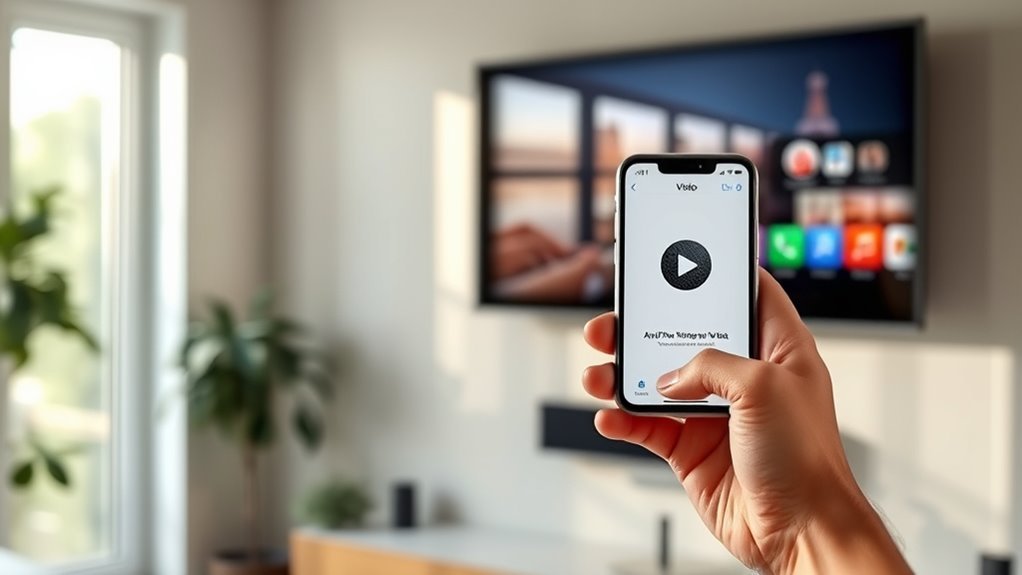
Now, on your iPhone, iPad, or Mac, enable AirPlay via Control Center or the menu bar. It’s super simple to do and lets you mirror or stream content seamlessly to your TV.
For the best experience, you might want to tweak sound and subtitle settings to your liking.
And if you run into any issues, don’t worry—there are some easy troubleshooting steps you can try to get things working smoothly again.
Key Takeaways
- Verify your Vizio TV model supports AirPlay by checking the model number and compatibility on Vizio’s official website. This step ensures your device can actually use AirPlay without any issues.
- Connect both your Vizio TV and Apple device to the same Wi-Fi network. This is super important for a seamless AirPlay connection.
- Access the Vizio TV menu using your remote. Then, navigate to Settings > System, and select “AirPlay & HomeKit” to enable AirPlay.
- Toggle the AirPlay feature to “On.” You can also set up security options here, like requiring an AirPlay code if you want some extra protection.
- On your Apple device, open Control Center if you’re on iOS, or the menu bar if you’re on a Mac. Then, select Screen Mirroring or AirPlay, and pick your Vizio TV from the list.
Verify Vizio TV AirPlay Compatibility
Before you can use AirPlay on your Vizio TV, you need to confirm that your model supports this feature. Not all Vizio TVs have AirPlay capability, so double-checking is essential.
Generally, AirPlay works on SmartCast-enabled Vizio TVs from 2016 or later, but it’s best to verify your exact model. You can find your model number on the back of your TV or in the settings menu under “System” or “About.”
Once you have the model number, visit Vizio’s official website or check the user manual to see if AirPlay is listed as a supported feature. If your TV doesn’t support AirPlay, you’ll need to contemplate alternative methods for streaming content from your Apple devices.
Connect Vizio TV and Apple Device to Wi-Fi
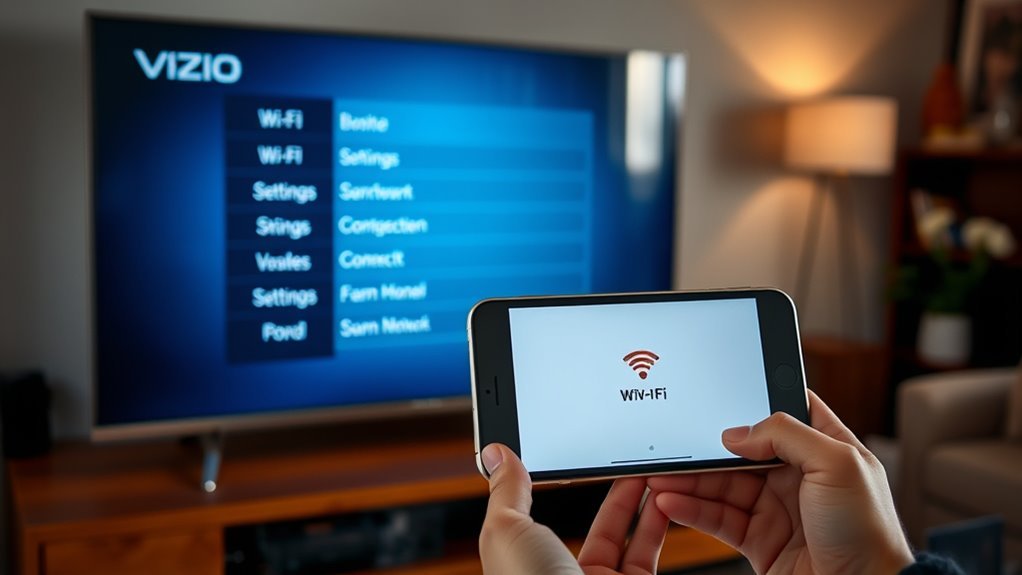
Once you’ve confirmed that your Vizio TV supports AirPlay, the next step is to make sure both your TV and Apple device are connected to the same Wi-Fi network. This is super important for AirPlay to work smoothly.
Ensure your Vizio TV and Apple device share the same Wi-Fi network for seamless AirPlay streaming.
Here’s how you can do it:
- Connect your Vizio TV to Wi-Fi: Go to your TV’s Settings, select Network, then Wireless. Choose your Wi-Fi network and enter the password if prompted.
- Connect your Apple device to the same network: On your iPhone, iPad, or Mac, open Settings (or System Preferences), tap Wi-Fi, and select the same network your TV is using.
- Verify both devices are on the same network: Double-check the network name on both devices to avoid connection issues.
Following these steps makes sure your devices communicate seamlessly for AirPlay. Easy, right?
Turn On AirPlay in Your Vizio TV Settings
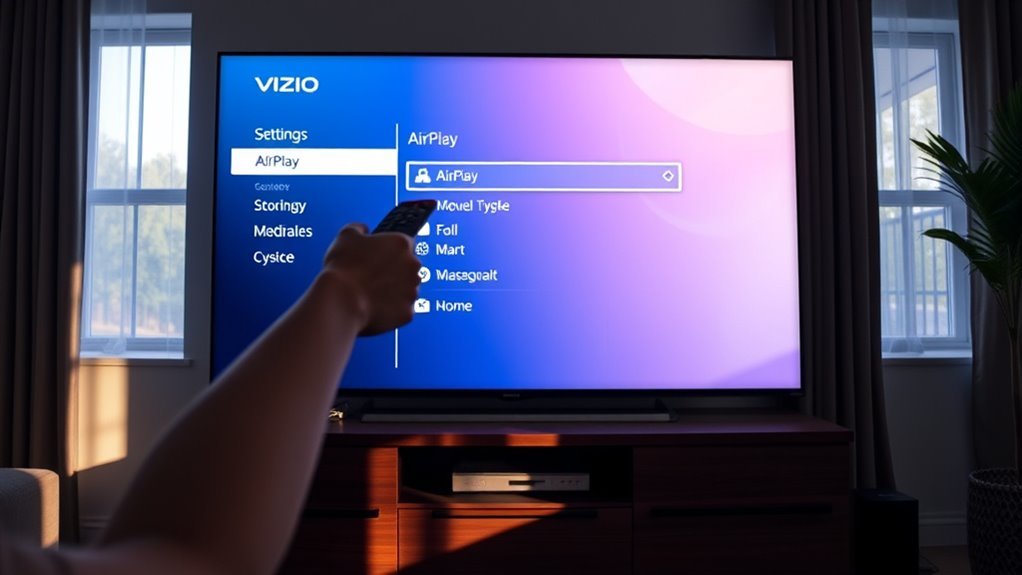
To turn on AirPlay, start by accessing your Vizio TV’s menu using the remote. Then, navigate to the AirPlay settings option.
Finally, enable the AirPlay feature to get started. It’s pretty straightforward once you get to the right menu!
Access Vizio TV Menu
Although your Vizio TV offers many features, you’ll need to access its menu to enable AirPlay. Here’s how you can get to the menu quickly:
- Press the Menu button on your Vizio remote. This will bring up the main settings panel on your screen.
- Use the arrow keys to scroll through options until you find Settings or System. Select it by pressing the OK button.
Once inside the settings, look for the Apple AirPlay or AirPlay & HomeKit option to begin setup. It’s pretty straightforward once you get there. Just follow the prompts, and you’ll be streaming in no time!
Navigate To AirPlay Settings
Before you can start streaming, you’ll need to locate and activate the AirPlay settings on your Vizio TV. Begin by pressing the “Menu” button on your remote, then navigate to the “Apple AirPlay and HomeKit” option within the settings menu.
This section is where you control all AirPlay-related features. Once there, you’ll see options to customize how AirPlay functions on your TV. Take note of these settings, as they allow you to manage security and device access.
Don’t worry about turning AirPlay on just yet—that comes next. For now, focus on finding this menu so you’re ready to enable AirPlay quickly. Familiarizing yourself with this location streamlines the setup process and guarantees you won’t miss any steps.
Enable AirPlay Feature
Once you’ve located the AirPlay settings on your Vizio TV, go ahead and toggle the AirPlay feature to “On.” This simple action activates AirPlay, allowing you to stream content from your Apple devices directly to your TV.
To guarantee everything works smoothly, follow these steps:
- Confirm your Vizio TV and Apple device are connected to the same Wi-Fi network.
- Adjust any AirPlay security settings, such as requiring a code for pairing, to protect your connection.
- Test the feature by selecting the AirPlay icon on your Apple device and choosing your Vizio TV from the list.
Enabling AirPlay is quick and straightforward. It gives you seamless access to your favorite videos, music, and photos on the big screen.
You’ll love how easy it is to share your content with family and friends!
Enable AirPlay on Your iPhone, iPad, or Mac
When you want to share content from your iPhone, iPad, or Mac to your Vizio TV, enabling AirPlay is a straightforward process that lets you stream videos, photos, and audio wirelessly.
First, make sure your device and Vizio TV are connected to the same Wi-Fi network. On your iPhone or iPad, open Control Center, tap Screen Mirroring, and select your Vizio TV.
On a Mac, click the AirPlay icon in the menu bar and choose your TV. If you don’t see the icon, just activate it in Display settings.
| Device | Access AirPlay | Select Device |
|---|---|---|
| iPhone/iPad | Swipe down (Control Center) | Tap Screen Mirroring |
| Mac | Click AirPlay icon (menu bar) | Choose Vizio TV |
| Network | Verify same Wi-Fi | Confirm connection |
| Settings | Enable AirPlay if off | Update if necessary |
| Troubleshoot | Restart devices | Check firmware |
Mirror or Stream Content to Your Vizio TV
Now that AirPlay is enabled, you can easily connect your iPhone, iPad, or Mac to your Vizio TV. Whether you want to mirror your screen or stream videos, there are several options available.
Let’s explore how to get your content from your device onto the big screen. It’s simpler than you might think!
Connecting Your Devices
Although setting up your devices might seem tricky at first, connecting them to your Vizio TV for AirPlay is actually pretty straightforward.
First, make sure your iPhone, iPad, or Mac is on the same Wi-Fi network as your Vizio TV. Next, enable AirPlay on your TV by going into the settings menu, selecting “Apple AirPlay & HomeKit,” and turning AirPlay on.
Now, you’re ready to mirror or stream content. On your iOS device, just open Control Center and tap “Screen Mirroring,” then pick your Vizio TV from the list.
If you’re on a Mac, click the AirPlay icon in the menu bar and choose your TV. Then, start playing your videos, music, or photos, and enjoy them on the big screen.
It’s that simple! This connection lets you share your content seamlessly.
Streaming Options Overview
Curious about the best way to enjoy your content on a Vizio TV using AirPlay? You’ve got two main options: mirroring your device’s screen or streaming specific content directly.
Mirroring duplicates everything on your iPhone, iPad, or Mac screen to the TV. It’s perfect for sharing photos, presentations, or apps that don’t support direct streaming.
Streaming, on the other hand, sends just the media—like videos, music, or podcasts—from supported apps to your Vizio TV. This way, your device is free to do other things while the content plays.
Both methods require your devices and TV to be on the same Wi-Fi network. So, choose mirroring when you want full control, and streaming when you want seamless playback.
Either way, AirPlay makes it super easy to enhance your viewing experience on Vizio.
Adjust AirPlay Video and Audio Settings
Before streaming content, you’ll want to adjust the AirPlay video and audio settings on your Vizio TV to guarantee the best quality and performance. Proper settings ensure smooth playback and clear sound.
Adjust AirPlay settings on your Vizio TV for optimal video quality and seamless audio performance.
Here’s how to optimize your experience:
- Video Resolution: Navigate to the AirPlay settings and select the highest supported resolution to get crisp and clear visuals.
- Audio Output: Choose between TV speakers or an external audio system connected to your TV for the best sound.
- Subtitles and Captions: Enable or customize subtitles if you want text displayed during video playback.
Troubleshoot AirPlay Issues on Vizio TV
Once you’ve set your AirPlay video and audio preferences, you might still encounter occasional issues when streaming to your Vizio TV. First, confirm both your TV and Apple device are connected to the same Wi-Fi network.
If AirPlay isn’t showing up, try restarting your TV and the device you’re streaming from. It sounds simple, but it often does the trick.
Check for software updates on your Vizio TV and your Apple device, since outdated software can cause compatibility problems. Also, make sure AirPlay is enabled in your TV’s settings.
If you notice audio or video lags, try reducing network congestion by disconnecting other devices or moving closer to the router. Sometimes, a stronger connection makes all the difference.
Finally, if problems persist, reset your network settings. These steps usually resolve common AirPlay issues on your Vizio TV quickly and effectively.
Frequently Asked Questions
Can I Use Airplay on Older Vizio TV Models?
You can’t use AirPlay on older Vizio TV models since they lack built-in support.
However, you can connect an Apple TV or any AirPlay-compatible device to your TV. This way, you can stream content wirelessly from your iPhone, iPad, or Mac without any hassle.
Does Airplay Work With Third-Party Apps on Vizio TV?
Yes, AirPlay works with many third-party apps on your Vizio TV, letting you stream audio, video, or mirror your device’s screen.
Just make sure both devices are on the same Wi-Fi network for smooth playback. It’s pretty straightforward and really handy when you want to share content quickly.
Is an Apple TV Device Required for Airplay on Vizio?
You don’t need an Apple TV device to use AirPlay on your Vizio TV. Vizio’s SmartCast TVs have AirPlay built-in, so you can stream directly from your Apple devices without extra hardware or cables.
It’s pretty convenient, right? Just connect your iPhone, iPad, or Mac, and you’re good to go—no need for any additional gadgets.
How Secure Is Airplay Streaming on Vizio TVS?
AirPlay streaming on Vizio TVs is quite secure because it uses end-to-end encryption and requires device authentication. You can trust your content stays private as long as your Wi-Fi network is secure and you keep firmware updated.
Just make sure your network is safe, and keep your TV’s software up to date. That way, you’ll have a smooth and secure streaming experience.
Can Multiple Devices Connect to Airplay on Vizio Simultaneously?
You can connect multiple devices to AirPlay on your Vizio TV, but only one streams at a time.
You can switch between devices seamlessly, share content easily, and control playback without interrupting your viewing experience.
It’s pretty convenient when you want to take turns streaming from different devices without any hassle.
Conclusion
Now that you know how to enable AirPlay on your Vizio TV, you’re just a few taps away from streaming your favorite content seamlessly. Did you know that over 60% of smart TV users prefer AirPlay for its ease and quality?
By following these simple steps, you can enjoy crystal-clear video and audio right from your Apple device. So go ahead, connect, stream, and elevate your viewing experience effortlessly!
Enabling AirPlay on your Vizio TV opens up a world of convenience and superior streaming quality. Whether it’s movies, music, or photos, AirPlay makes sharing content from your iPhone, iPad, or Mac easier than ever. With these 7 easy steps, you’re all set to transform your TV into a smart entertainment hub. Give it a try and experience the seamless integration of Apple’s AirPlay technology on your Vizio TV today!