How to Plug Headphones Into TV in 5 Easy Steps
To plug headphones into your TV, start by checking if your TV has a headphone jack or an audio out port. These are usually 3.5mm jacks, but sometimes you might find RCA or optical outputs instead.
If your headphones are wired, you’ll need the right plug or an adapter to match the TV’s audio port.
If you’re using Bluetooth headphones, the process is a bit different. Put your headphones into pairing mode and then connect them through your TV’s Bluetooth settings.
It’s usually straightforward and lets you enjoy wireless sound.
Once connected, make sure to adjust the TV’s audio output to headphones.
Don’t forget to set the volume to a comfortable level so you can enjoy your shows without disturbing others.
If you want to improve sound quality or troubleshoot any connection issues, keep reading for some handy tips ahead.
Key Takeaways
- Locate the headphone jack or audio out port on your TV. It’s usually a 3.5mm or RCA connector.
- If your TV doesn’t have a headphone jack, don’t worry. You can use an RCA-to-3.5mm adapter or a digital-to-analog converter instead.
- Plug your wired headphones into the right audio output or adapter connected to the TV.
- For Bluetooth headphones, just enable pairing mode. Then, connect through the TV’s Bluetooth settings menu.
- Finally, adjust the TV audio settings to output sound through your headphones. Make sure to set a comfortable volume level too.
How to Tell If Your TV Has a Headphone Jack
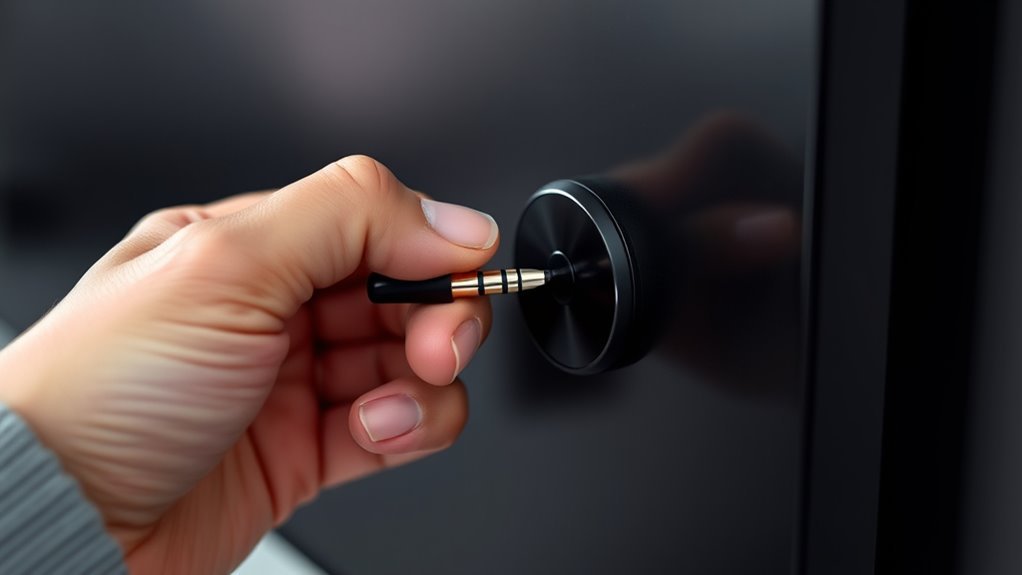
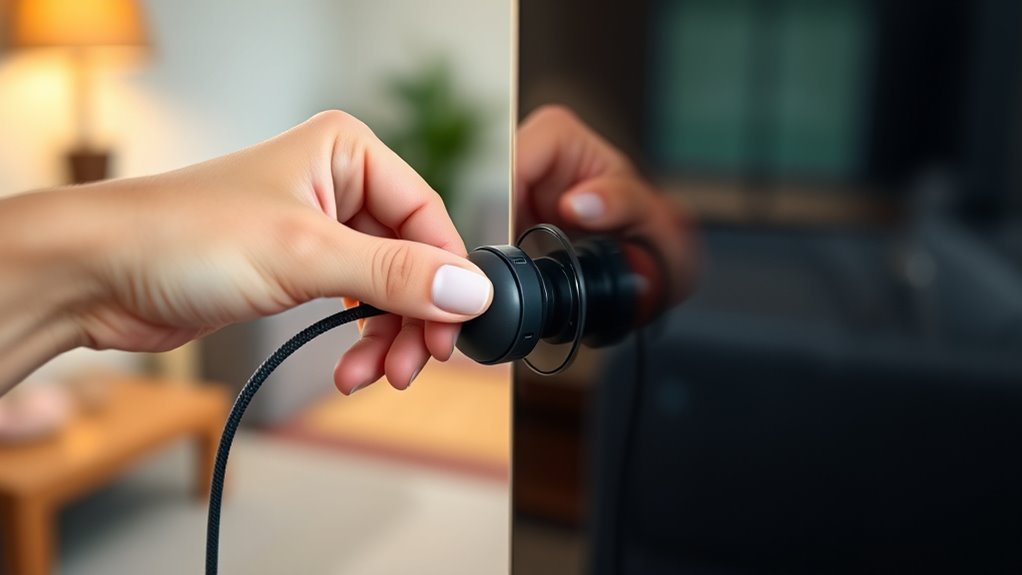
How can you quickly find out if your TV has a headphone jack? First, check the sides and back of your TV for a small, round port labeled with a headphone icon or “Audio Out.” It’s usually a 3.5mm jack, similar to those on phones or laptops.
If you don’t see a headphone symbol, look for ports labeled “Audio Out” or “Line Out,” which might work with headphones using an adapter. Another quick way is to consult your TV’s user manual or search online for your model’s specifications.
If your TV has no visible jack or audio output port, it likely doesn’t support direct wired headphone connections. In that case, you’ll need alternative methods to connect your headphones.
How to Connect Wired Headphones (With or Without an Adapter)
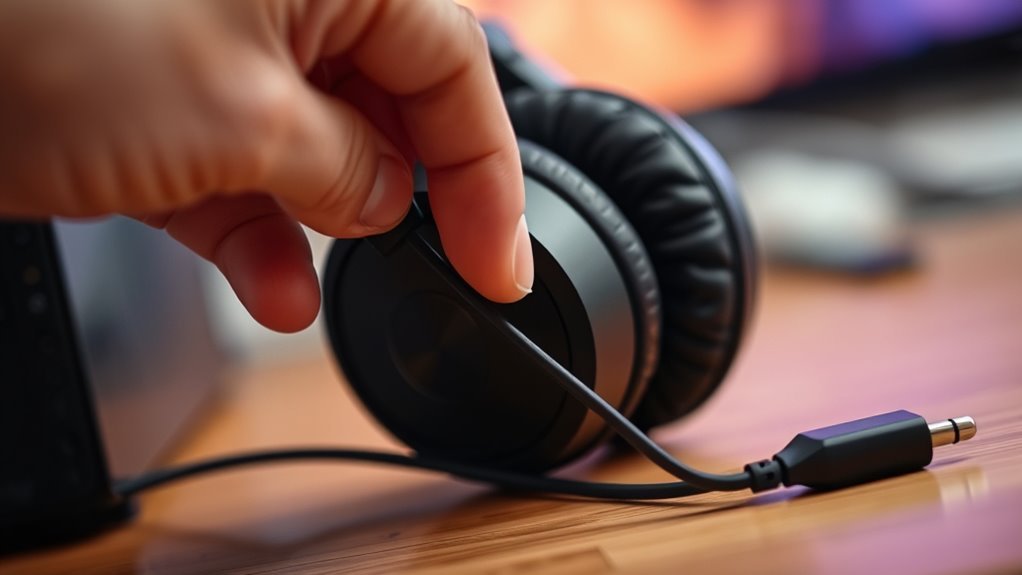
Even if your TV doesn’t have a dedicated headphone jack, you can still connect wired headphones by using the right adapter or converter. Here’s how to get your headphones working:
No headphone jack? Use the right adapter or converter to connect your wired headphones easily.
- Locate the audio output: Look for RCA (red and white) ports or a digital optical audio out on your TV.
- Choose the correct adapter: For RCA ports, use an RCA-to-3.5mm adapter. For optical audio, get a digital-to-analog converter with a 3.5mm output.
- Connect and test: Plug your headphones into the adapter, then connect the adapter to your TV’s audio output. Adjust your TV’s audio settings to enable external audio output if needed.
This method guarantees you can enjoy private listening even without a headphone jack on your TV.
How to Pair Bluetooth Headphones With Your TV
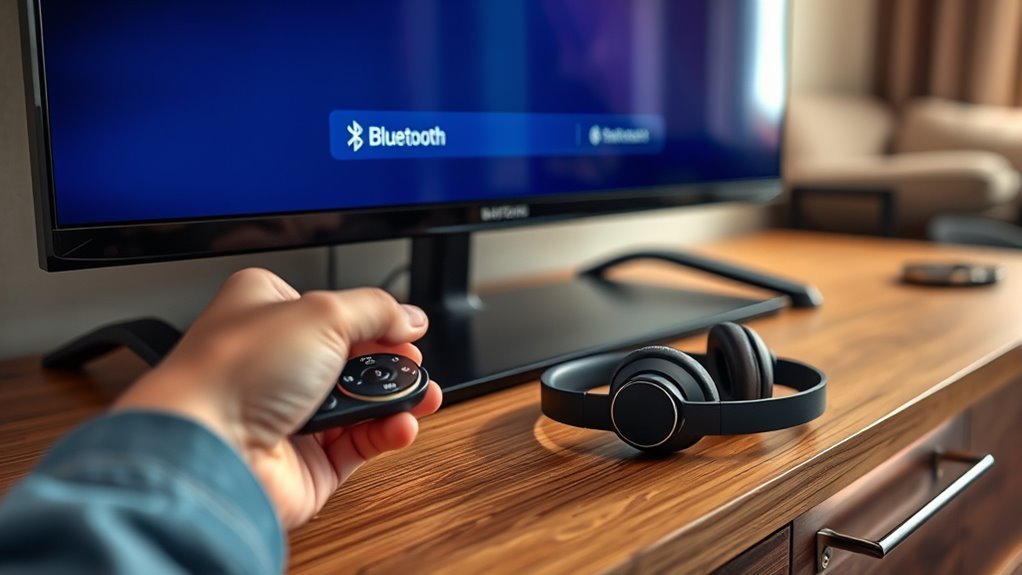
If your TV supports Bluetooth, you can easily connect wireless headphones for a clutter-free listening experience. First, turn on your Bluetooth headphones and put them in pairing mode—usually by holding the power button until a light flashes.
On your TV, open the settings menu and navigate to the Bluetooth or audio devices section. Select “Add device” or “Pair new device.” Your TV will search for nearby Bluetooth devices.
When you see your headphones on the list, select them to initiate pairing. Once connected, your TV audio will stream directly to your headphones.
Keep in mind, the exact steps may vary by TV brand, so check your TV’s manual if needed. Now you’re set to enjoy wireless sound without hassle.
Adjust TV Audio Settings for Headphones
Wondering how to get the best sound from your headphones when connected to your TV? Adjusting your TV’s audio settings is key to improving your listening experience.
Here’s how to do it effectively:
- Switch Audio Output: Go to your TV’s audio settings and select the headphone or external speaker option instead of the TV speakers.
- Adjust Volume Levels: Lower the TV’s built-in speaker volume if available. Then, increase the headphone volume to a comfortable level without distortion.
- Enable Sound Enhancements: Look for options like “Headphone Surround Sound” or “Audio Boost.” These features can enhance clarity and bass, making your headphones sound even better.
Troubleshoot Common Headphone Connection Problems
Although connecting headphones to your TV is usually straightforward, you might run into some common issues that prevent sound from playing correctly. First, check that your headphones are fully plugged in.
If you still hear no sound, verify your TV’s audio output settings. Sometimes, the volume might be too low or muted. Also, inspect your headphone cable for damage.
If you’re using Bluetooth, make sure your headphones are paired and within range. That often solves connection problems quickly.
| Problem | Solution |
|---|---|
| No sound | Check connection and volume |
| Distorted audio | Inspect cable or battery status |
| Bluetooth not pairing | Reset devices and retry pairing |
| Sound delay | Reduce distance or interference |
Following these steps will help you enjoy your headphones hassle-free. Give them a try and get back to your favorite shows or music in no time!
Frequently Asked Questions
Can I Use Wireless Headphones With Any TV Brand?
You can use wireless headphones with most TV brands, but they need Bluetooth or a compatible transmitter.
If your TV lacks Bluetooth, you’ll need a Bluetooth adapter to connect your headphones wirelessly. It’s pretty easy to set up once you have the right gear. Just plug in the adapter, pair your headphones, and you’re good to go!
Do Headphones Affect TV Sound Quality?
Yes, headphones can affect TV sound quality. You’ll notice clearer, more detailed audio since headphones isolate sound better.
But keep in mind, some TVs might lower the external speaker volume or change audio settings when you plug in headphones. This can slightly alter the overall sound.
Are There Specific Headphones Recommended for TV Use?
You’ll want wireless or low-latency Bluetooth headphones for TV use to avoid audio delays. Look for models with comfortable ear cushions and long battery life.
This way, you get a smooth, immersive experience without sound lag or discomfort. It really makes watching TV more enjoyable!
Can I Connect Multiple Headphones to One TV?
Yes, you can connect multiple headphones to one TV! Over 60% of modern TVs support Bluetooth multipoint, letting you enjoy audio with a friend.
Just pair each headphone, or if you prefer wired connections, use a headphone splitter. It’s pretty simple and makes sharing audio super easy!
Is It Possible to Use Headphones With TV Apps Like Netflix?
Yes, you can use headphones with TV apps like Netflix. Just connect your headphones to the TV’s audio output or use Bluetooth if your TV supports it.
That way, you’ll enjoy private, immersive sound while streaming your favorite shows. It’s a great way to watch without disturbing others around you.
Conclusion
Now that you’ve mastered plugging headphones into your TV, imagine stepping into a private concert where every whisper and explosion blasts perfectly in your ears. No more battling the living room noise or waking the entire house.
With just a few simple steps, you’ve opened a world of immersive sound that’s all yours. So go ahead, immerse yourself in your favorite shows and movies like never before—your ears will thank you endlessly!
Plugging headphones into your TV is a game-changer. It lets you enjoy crystal-clear audio without distractions, whether you’re binge-watching late at night or catching up on your favorite series during the day. Plus, it’s super easy and quick to do. Now, every time you want to tune out the noise and dive into your entertainment, you know exactly how to do it. Your private, immersive TV experience is just a few simple steps away!