What Does Sharpness Do on TV Screens?
Sharpness on your TV adjusts how clearly edges appear by boosting contrast around objects, but it doesn’t add real detail or fix blurry images. It’s a setting that can make things look crisper, but it’s important to know it’s really about enhancing the edges, not creating new information.
Too much sharpness can create unnatural halos and make the picture look harsh or artificial. This can actually cause eye strain if you’re watching for a long time. So, it’s a bit of a balancing act to get it just right.
Different content like movies or sports may need different sharpness settings for the best look. For example, you might want less sharpness for cinematic scenes but a bit more for fast-paced sports to see details clearly.
If you want to get the most out of your viewing experience, exploring these nuances can really help. Play around with the sharpness until it feels comfortable and looks natural to you.
Key Takeaways
- Sharpness enhances edge contrast to improve perceived clarity without increasing actual image resolution. It makes edges look clearer, but it doesn’t add any real detail.
- If you turn up the sharpness too much, you’ll start to see halos and artificial outlines. This actually makes the picture look less natural and can be distracting.
- Different types of content need different sharpness settings. What looks good for a movie might not work well for a sports game or a cartoon.
- Keep in mind, sharpness can’t fix blurry or low-resolution images. In fact, it might even make visual problems worse by highlighting imperfections.
- The key is to find the right balance. You want enough sharpness to enhance detail but not so much that it strains your eyes or ruins the picture quality.
What Does TV Sharpness Really Mean?
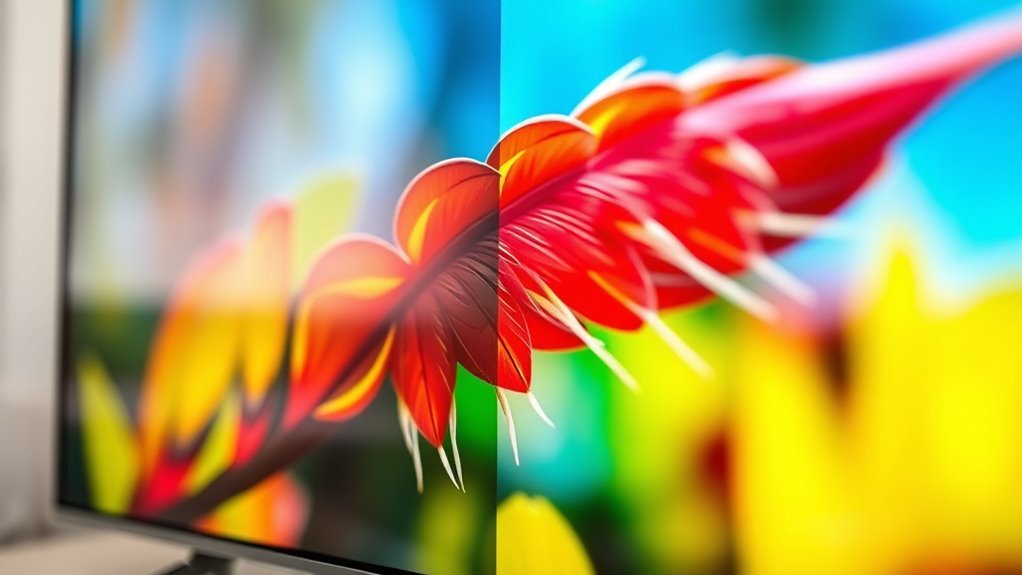
What exactly does sharpness mean when it comes to your TV screen? Sharpness controls how clearly the edges of objects appear on your display. When you adjust sharpness, you’re fundamentally telling the TV how much edge contrast to add, which affects how defined details look.
Too high, and edges might look unnatural or overly crisp, creating an artificial outline. Too low, and images can appear soft or blurred, losing detail and clarity. Sharpness isn’t about resolution—it doesn’t add actual detail but enhances existing edges to make them stand out more.
How Sharpness Changes Movies, Sports & Games

When you adjust sharpness on your TV, it can dramatically affect how movies, sports, and games look. For movies, increasing sharpness might highlight details, but it can also add unwanted edge enhancement, making scenes look artificial and less cinematic.
In sports, a higher sharpness setting often helps you see fast movements and fine details like players’ numbers or the texture of the ball more clearly. This can really enhance your viewing experience.
When it comes to games, sharpness can impact your ability to spot enemies or objects quickly, improving gameplay responsiveness. But keep in mind, different content benefits from different sharpness levels.
Why Too Much TV Sharpness Hurts Your Viewing

If you crank up the sharpness too high, you’ll notice edges become over-enhanced and unnatural. This can make the image look artificial rather than realistic.
Plus, your eyes may get strained from trying to process the exaggerated details. It’s like your TV is working too hard to show every little thing. Not exactly what you want when you’re just trying to relax and enjoy the show.
Over-Enhanced Edges
Although increasing sharpness might seem like a good way to improve picture clarity, pushing it too far can create over-enhanced edges that actually degrade your viewing experience. When sharpness is set too high, the TV artificially exaggerates the contrast between adjacent pixels, making edges appear unnaturally bold and harsh.
This effect can introduce unwanted halos or outlines around objects, distracting you from the natural flow of the image. Instead of adding detail, it highlights imperfections and noise, reducing overall picture quality.
You’ll notice that fine textures lose their subtlety, and scenes appear less realistic. To enjoy a balanced and comfortable view, it’s best to keep sharpness at a moderate level where edges remain clear without becoming overly pronounced or distorted.
Artificial Image Appearance
Over-enhanced edges don’t just distract—they make the entire image look artificial. When your TV’s sharpness is cranked up too high, it exaggerates outlines and textures, creating a “halo” effect around objects.
This artificial boost tricks your eyes into seeing details that aren’t really there, undermining the natural look of the picture. Instead of enjoying a smooth, lifelike image, you get something that feels overly processed and fake.
You might notice faces looking unnaturally crisp or backgrounds appearing grainy and harsh. If you want a more authentic viewing experience, dialing back the sharpness helps preserve the subtle gradations and soft blends your eyes expect.
Increased Eye Strain
When your TV’s sharpness is set too high, your eyes work harder to process the exaggerated edges and artificial details, leading to increased strain and fatigue. You might notice discomfort, headaches, or even difficulty focusing after watching for a while.
That’s because your brain tries to interpret these overemphasized outlines as real, which forces your visual system to overcompensate. Instead of relaxing, your eyes stay tense, making long viewing sessions tiring.
To avoid this, try lowering the sharpness setting to a level where images look natural and comfortable. This adjustment reduces unnecessary visual stress and helps your eyes feel more at ease, enhancing your overall viewing experience without sacrificing picture clarity.
Adjust Sharpness for Movies, Sports & Games
Since different types of content benefit from unique sharpness settings, you’ll want to adjust your TV’s sharpness depending on whether you’re watching movies, sports, or playing games. For movies, lower sharpness usually works best, preserving natural skin tones and avoiding exaggerated edges that can make scenes look artificial.
When watching sports, increasing sharpness can help highlight fast-moving details, like players and the ball. This makes the action clearer and more engaging.
For gaming, a moderate sharpness level enhances graphics without adding distracting noise or halos around objects. This helps you spot details quickly.
Tips to Find the Perfect TV Sharpness Level
To find the perfect sharpness level, you’ll want to adjust the settings while balancing clarity and noise. Test different sharpness levels with various content like movies, sports, and games to see what looks best.
This way, you can tailor your TV’s sharpness to suit your viewing preferences perfectly. It’s all about finding that sweet spot that makes everything look just right.
Adjusting Sharpness Settings
Although adjusting sharpness might seem straightforward, finding the perfect level requires careful tuning to match your viewing environment and content type. To get started, follow these steps:
- Use Test Patterns – Display sharpness test images or calibration patterns to see how details and edges appear at different settings.
- Adjust Incrementally – Increase or decrease sharpness in small steps while watching various content types like movies, sports, and news for balanced clarity.
- Consider Room Lighting – Bright rooms can make images look softer, so you might need to boost sharpness slightly; dim rooms often require less sharpness to avoid harsh outlines.
Balancing Clarity And Noise
When you tweak the sharpness on your TV, you’ll often notice that boosting it too much sharpens edges but also introduces unwanted noise or graininess. To find the perfect balance, start by setting sharpness to a neutral or moderate level.
Then, gradually increase it until edges look clear without adding distracting artifacts. If you see halos or a gritty texture, dial it back slightly.
Remember, the goal is to enhance detail without compromising picture quality. Sometimes, less is more, especially with high-quality content.
Trust your eyes—if the image looks natural and comfortable to watch, you’ve likely hit the sweet spot. Avoid extremes, and keep adjustments subtle to maintain both clarity and smoothness in your viewing experience.
Testing With Different Content
How do you know if your sharpness setting truly fits your favorite shows and movies? The best way is to test it with different types of content. Sharpness affects various scenes uniquely, so adjusting it while watching diverse videos helps you find the perfect balance.
Here’s how to do it:
- Watch fast-action scenes like sports or action movies. Notice if edges stay clear without becoming overly harsh or noisy.
- Check detailed shots such as nature documentaries or close-ups. The right sharpness should enhance textures without creating artificial outlines.
- View softer content like dramas or animations. Too much sharpness can make these look unnatural, so dial it down if needed.
TV Sharpness Myths That Can Hurt Your Picture
Even if you think cranking up your TV’s sharpness will improve every image, you might actually be hurting your picture quality. Over-sharpening can introduce unwanted noise, halos, and unnatural edges.
Many believe higher sharpness always means clearer images, but that’s a myth. You should balance sharpness to avoid these common pitfalls.
| Myth | What Happens When You Believe It | Reality |
|---|---|---|
| More sharpness = clarity | Edges become exaggerated, causing halos | Moderate sharpness preserves detail |
| Sharpness fixes blur | Noise and grain become more visible | Sharpness can’t fix low-res blur |
| Max sharpness looks best | Picture looks artificially processed | Natural sharpness looks better |
| Sharpness boosts all content | Some scenes get overly harsh details | Adjust per content type |
Avoid these myths to enjoy a more natural, pleasing picture.
Frequently Asked Questions
Does TV Sharpness Affect Energy Consumption?
No, adjusting your TV’s sharpness doesn’t considerably affect energy consumption. It mainly changes picture clarity, not power use.
Can Sharpness Settings Impact Eye Strain?
Oh, sure, crank up sharpness to medieval levels and give your eyes a workout worthy of an Olympic gymnast.
Yes, you’ll strain your eyes if you don’t keep sharpness balanced, so don’t go overboard!
Is Sharpness Adjustment the Same on All TV Brands?
No, sharpness adjustment isn’t the same on all TV brands. Each brand uses different image processing, so the sharpness effect and settings can vary.
You’ll want to tweak it based on your specific TV model for the best picture. It’s really about finding what looks best to you.
How Does Sharpness Influence 4K Vs HD Content?
Think of sharpness as a painter’s brush—on 4K, it adds fine details, making the image crisp.
But on HD, overdoing it can create fake edges, like an overworked sketch. You’ll want to adjust carefully.
Can External Devices Change TV Sharpness Settings?
Yes, external devices can change your TV’s sharpness settings if they send their own image processing signals. You’ll often find options in device menus, but the TV’s internal settings usually override these adjustments.
Conclusion
Sharpness on your TV is like seasoning in a dish—just the right amount brings out the best flavors, but too much can ruin the experience. It enhances edges and details, making sports pop and games crisp.
But overdoing it creates unnatural halos and noise. So, adjusting sharpness based on what you watch is key. Don’t fall for myths that say max is always best.
Finding your perfect balance helps your screen shine like a well-tuned masterpiece. Proper sharpness settings improve picture quality by enhancing clarity without adding distracting artifacts. This makes watching movies, sports, and gaming much more enjoyable. Remember, sharpness is about subtle enhancement, not exaggeration. So take your time to fine-tune it, and your TV will deliver the best viewing experience possible.