How Do You Fix Dead Pixels on a TV Step by Step
To fix dead pixels on your TV, the first step is to identify whether the pixels are actually dead (which usually appear black) or just stuck (which show as colored spots). This helps you choose the right approach to fix them.
One popular method is to run pixel-fixing apps or videos that cycle through different colors for about 10 to 30 minutes. These tools can sometimes jog stuck pixels back to life.
You can also try gently pressing the affected area with a soft cloth or applying a warm compress, but be very careful not to press too hard.
If you notice the problem is widespread or your TV screen is an advanced model, it’s usually best to seek professional help.
Keep reading for more detailed steps and expert tips to help restore your screen effectively and get the best picture quality again.
Key Takeaways
- Identify dead or stuck pixels by displaying solid black, white, and color screens to locate problem areas. This helps you see exactly where the issue is.
- Run pixel-fixing software or videos that cycle through colors for 10–30 minutes. This can sometimes automatically stimulate the pixels back to life.
- Gently press the affected pixel area with a soft cloth, applying light pressure for 10–20 seconds. It’s a simple manual trick that might do the job.
- Use a warm, damp cloth to massage the pixel area carefully. Just be sure not to use too much heat or force, as that could cause damage.
- If dead pixels are widespread, clustered, or your TV is still under warranty, it’s best to seek professional help or contact the manufacturer. They can offer solutions or repairs you might not be able to do yourself.
How to Identify Dead Pixels vs. Stuck Pixels on Your TV

Although dead pixels and stuck pixels might seem similar, you can tell them apart by how they behave on your TV screen. Dead pixels appear as tiny black dots because they don’t emit any light, while stuck pixels glow in one color—red, green, or blue—because they’re permanently on.
To spot them, display solid colors like white or black on your TV and carefully scan the screen. If you see a pixel that stays black regardless of the image, it’s dead. If a pixel shines in a single color, it’s stuck.
Knowing the difference helps you decide how to address the issue. Dead pixels usually indicate hardware failure, while stuck pixels might respond to certain fixes. Identifying them accurately is your first step.
Easy Software Fixes for Dead Pixels You Can Try First
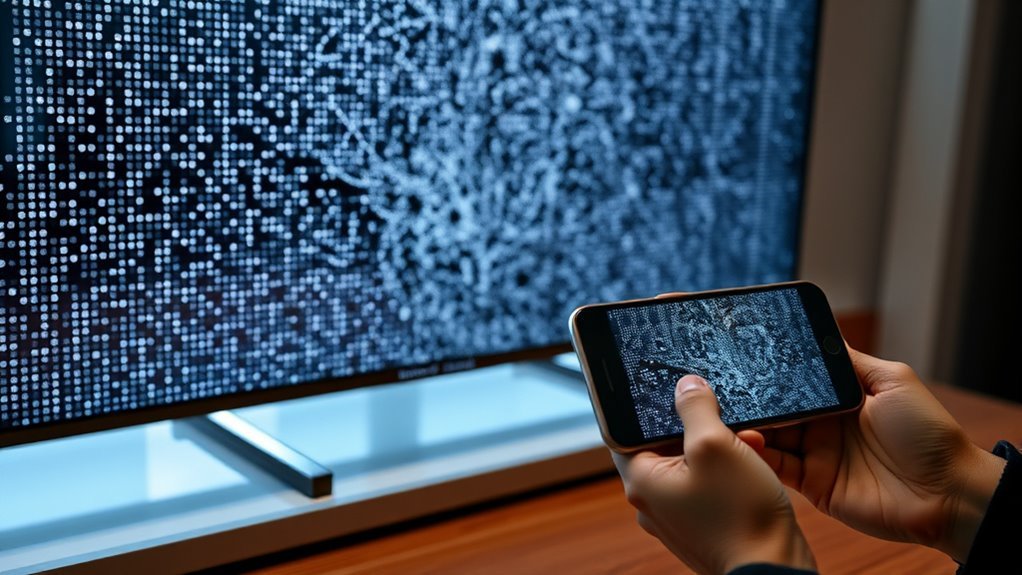
Once you’ve identified whether a pixel is dead or stuck, you can try some simple software solutions to fix stuck pixels before considering hardware repairs. Start by running a pixel-fixing app or video that rapidly cycles through colors. These programs stimulate the stuck pixel to refresh and can often restore proper function.
You can find free options online or apps for smart TVs. Another method is to use screen flashing tools that quickly change colors across the affected area. Run these fixes for about 10 to 30 minutes, but stop if you see no improvement.
Safe Pressure and Heat Techniques to Unstick Dead Pixels
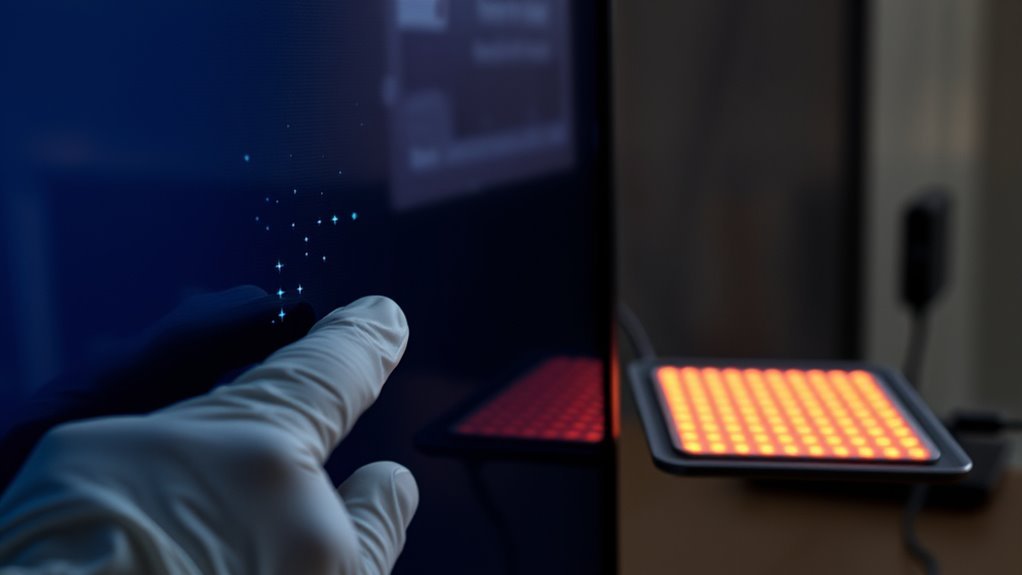
You can try gently applying pressure to the dead pixel area to encourage it to unstick without causing damage.
Another method is using a warm cloth to softly heat the spot, which may help revive the pixel. Just be sure to follow timing and safety tips to avoid harming your screen.
Applying Gentle Pressure
If a dead pixel refuses to disappear with basic troubleshooting, applying gentle pressure can often help revive it. First, turn off your TV and unplug it to avoid damage.
Use a soft, clean cloth to protect the screen. Gently press the cloth-covered fingertip against the stuck pixel area without pushing too hard—excessive force might cause more harm.
Hold the pressure for about 10 to 20 seconds, then release and turn the TV back on to check if the pixel has responded. You can repeat this process a few times if necessary, but always remain cautious.
This technique works by encouraging the liquid crystals to realign, potentially restoring the pixel to normal operation without risking screen damage.
Using Warm Cloth Method
When gentle pressure alone doesn’t bring a stuck pixel back to life, combining it with warmth can boost your chances of success. Start by soaking a clean, soft cloth in warm water—make sure it’s comfortably warm, not hot.
Wring out the excess water so the cloth is damp but not dripping. Gently press the warm cloth over the stuck pixel area for about 30 seconds. The heat helps relax the liquid crystals inside the screen, encouraging the pixel to unstick.
After warming the spot, use your finger wrapped in the cloth to apply gentle pressure on the stuck pixel, moving in small circles. You can repeat this process a few times if needed.
This method is safe and effective when done carefully, just be sure to avoid excessive heat or pressure. It’s a simple trick that often does the job!
Timing and Safety Tips
Although applying pressure and heat can unstick dead pixels, timing and safety are essential to avoid damaging your TV. When using pressure, apply gentle, steady force for just a few seconds—don’t press too hard or too long, or you risk cracking the screen.
With heat, use a warm cloth, not hot, and hold it on the affected area for about 30 seconds at a time. Avoid overheating, which can cause permanent damage.
Always turn off and unplug your TV before starting to prevent electrical hazards. Take breaks between attempts to let the screen cool down.
How to Refresh or Cycle Pixels to Restore Your TV Screen
You can try revitalizing or cycling your pixels to bring them back to life. Using pixel cycling software or manual screen stimulation methods helps to reactivate stuck pixels by rapidly changing colors.
These techniques often restore your screen without needing expensive repairs. It’s a simple trick that might save you some money and hassle. Give it a shot before considering other options!
Pixel Refresh Techniques
Since dead pixels often result from stuck pixels that haven’t fully refreshed, using pixel refresh techniques can help revive your TV screen. Start by turning off your TV for a few hours to let the pixels rest.
When you turn it back on, display a series of solid colors—red, green, blue, white, and black—for several minutes each. This cycling can stimulate stuck pixels, encouraging them to change state.
You can also gently massage the affected area with a soft cloth, applying light pressure to help free the stuck pixels. Just be careful not to press too hard to avoid damage.
Repeating this process regularly may improve pixel responsiveness and reduce the appearance of dead spots. It’s a simple way to restore your TV’s image quality without needing professional repair.
Using Pixel Cycling Software
When stuck pixels resist manual methods, pixel cycling software offers an effective alternative to refresh your TV screen. This software rapidly cycles colors on the affected area, stimulating stuck pixels to function properly again.
You simply download the program, select the problem area, and run the cycle for 10–30 minutes. Patience is key, as results may take time.
| Step | Action |
|---|---|
| Download | Find reputable pixel cycling software |
| Select Area | Highlight the stuck pixel region |
| Run Cycle | Start color cycling for 10–30 mins |
| Monitor | Check pixel status intermittently |
| Repeat if Needed | Run multiple sessions if necessary |
Using this method, you can often revive pixels without risking damage to your TV. It’s a handy trick to try before considering costly repairs or replacements.
Manual Screen Stimulation Methods
If pixel cycling software doesn’t bring your stuck pixels back to life, manual screen stimulation methods offer a hands-on approach to refresh your TV screen. Start by turning off your TV and gently massaging the area with the stuck pixel using a soft cloth or your fingertip.
Apply light pressure in small circular motions to encourage the pixel to reset. Just be careful not to press too hard to avoid damaging the screen.
Another method is to display a rapid sequence of color changes or flashing images. You can do this by playing a video designed for pixel repair.
These techniques stimulate the pixel’s liquid crystals, potentially restoring their function. Repeat these steps for a few minutes, then check if the pixel responds.
Best Tools and Apps to Help Fix Dead Pixels on Your TV
Although dead pixels can be frustrating, you don’t have to accept them as permanent flaws. Several tools and apps work by rapidly cycling colors or flashing patterns to revive stuck pixels.
Using these can save you time and effort, often restoring your TV’s display with minimal hassle.
Here are some of the best options to try:
| Tool/App Name | Key Feature |
|---|---|
| JScreenFix | Runs pixel-fixing animations online |
| UDPixel | Desktop app for pixel repair |
| PixelHealer | Simple color cycling tool |
| Dead Pixel Tester | Checks and fixes dead pixels |
Give these a shot, and you might just bring your screen back to life without costly repairs.
When to Call a Professional or Replace Your TV Screen
Deciding whether to call a professional or replace your TV screen depends on the severity and type of pixel damage. If you notice a few stuck pixels, you might try DIY fixes first.
However, if the dead pixels spread across a large area or form clusters, it’s time to evaluate professional help. Attempting repairs on advanced or OLED screens without expertise can cause more harm.
Also, if your TV is under warranty, contacting the manufacturer or a certified technician is your best bet to avoid voiding it. On the other hand, if your TV is old or the repair cost approaches the price of a new set, replacing the screen—or the TV entirely—makes more sense.
Trust your judgment and choose what saves you time and money.
Frequently Asked Questions
Can Dead Pixels Worsen Over Time Without Repair?
Yes, dead pixels can worsen over time if left unrepaired. You might notice more pixels dying or existing ones spreading.
This can really degrade your TV’s picture quality and overall viewing experience. So, it’s a good idea to act quickly to prevent further damage.
Do Dead Pixels Affect TV Warranty Coverage?
Dead pixels might seem minor, but they can affect your TV warranty coverage depending on the manufacturer’s policy. You’ll want to check your warranty terms carefully, as some cover dead pixels while others don’t.
It’s a good idea to know what your warranty says before assuming you’re covered. That way, you won’t be caught off guard if dead pixels show up.
Are Certain TV Brands More Prone to Dead Pixels?
Yes, some TV brands are more prone to dead pixels due to manufacturing differences. You’ll want to research reviews and reliability reports before buying to avoid potential issues.
This way, you can guarantee you get a quality screen with fewer defects. It’s always better to be safe than sorry when investing in a new TV.
Can Screen Protectors Prevent Dead Pixels?
No, screen protectors can’t prevent dead pixels because those are caused by manufacturing defects or physical damage inside the screen.
However, protectors can help avoid scratches and external damage that might indirectly affect your TV’s display.
Is There a Way to Prevent Dead Pixels From Forming?
You can’t completely prevent dead pixels, but you can reduce risks by avoiding pressure, keeping your TV cool, and unplugging it during storms.
Handle your screen gently and use surge protectors to protect your TV’s longevity. It’s all about treating your screen with care to keep it working well for longer.
Conclusion
Fixing dead pixels on your TV can feel like a quest for the Holy Grail, but with patience and the right steps, you might just conquer it. Whether you try software tricks, gentle pressure, or pixel cycling, remember that persistence often pays off.
If all else fails, calling in a pro or considering a replacement can save you from a modern-day Achilles’ heel. Don’t give up—your perfect picture awaits!
Dead pixels can be frustrating, but following a step-by-step approach makes the process manageable. By using techniques like pixel refreshers or gently massaging the screen, you increase your chances of fixing those pesky dead pixels. When tackling this issue, patience and consistency are key.
In the end, fixing dead pixels on a TV often requires persistence and the right method. If DIY fixes don’t work, professional repair or a replacement might be your best bet to restore your viewing experience. Keep trying—you’re closer to a flawless screen than you think!