What Is SAP on TV and How Does It Work?
SAP on TV stands for Secondary Audio Program, a handy feature that lets you switch to an alternate audio track like another language or audio description without changing the video. It’s perfect for viewers who want more personalized sound options or need accessibility features.
You can easily enable SAP using your remote or TV settings to access hidden audio channels embedded in broadcasts.
This feature improves your viewing experience by offering quick switching between audio tracks. Whether you want to listen in a different language or hear descriptive audio for the visually impaired, SAP has you covered.
If you want to explore how to activate SAP, troubleshoot common issues, and optimize your experience, there’s plenty more insight ahead.
So, let’s dive in and make your TV watching even better!
Key Takeaways
- SAP (Secondary Audio Program) provides an alternate audio track for TV, often used for different languages or audio descriptions. It lets you hear something different without changing the video.
- It broadcasts multiple audio streams via digital multiplexing alongside the main program without affecting video content. This means you get extra sound options without any interruptions.
- Viewers can activate SAP through a dedicated remote button or TV audio settings to switch between audio tracks. It’s pretty simple once you know where to look.
- SAP enhances accessibility by offering language options and audio descriptions for visually impaired viewers. So, it makes TV more inclusive for everyone.
- Proper setup and manual selection ensure accurate audio playback, with troubleshooting available for common SAP issues. If something goes wrong, there are easy fixes to get you back on track.
What SAP on TV Means and Why It’s Useful

Although you might have seen the option labeled SAP on your TV remote, you may not know what it actually means or why it’s there. SAP stands for Secondary Audio Program, a feature that lets you switch to a different audio track while watching a show or movie.
This is especially useful if you want to listen in another language, hear descriptive narration for the visually impaired, or access alternate commentary. You might find SAP handy when you’re learning a new language or want to enjoy content with audio tailored to your preferences.
It’s a simple way to enhance your viewing experience without changing the video. Understanding SAP helps you make the most of your TV’s audio options and enjoy content in a way that suits you best.
How to Activate SAP on Your TV

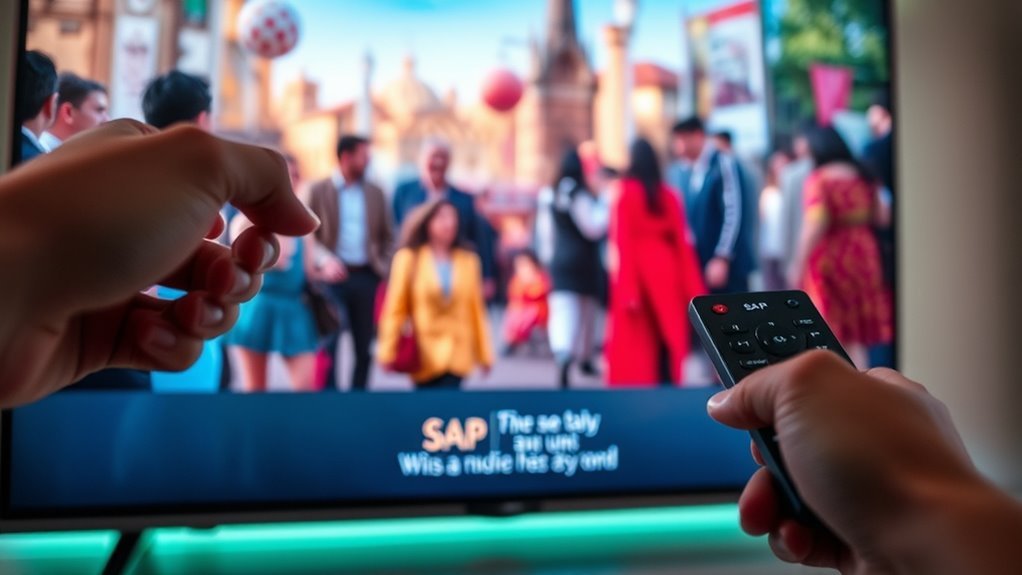
To activate SAP on your TV, start by locating the SAP button on your remote or access the audio settings through your TV menu. You’ll want to switch the audio track to SAP or Secondary Audio Program.
If it doesn’t work right away, try troubleshooting common issues like checking your channel’s SAP availability or resetting your TV’s audio settings. Sometimes a quick reset is all it takes to get things working smoothly.
Finding The SAP Button
When you want to access SAP on your TV, locating the SAP button is the first step. Look for a button labeled “SAP,” “Secondary Audio,” or “SAP Audio” on your remote control. It’s often near volume or channel controls.
If you don’t see it, check your remote’s manual or the manufacturer’s website for exact info. Some remotes combine SAP with an audio or language button, so pressing these might toggle SAP.
If your remote lacks a dedicated SAP button, don’t worry—you can still activate SAP through your TV’s menu, but that’s a different step. Finding the SAP button makes switching audio tracks quick and easy.
This way, you can enjoy alternate language tracks or audio descriptions without digging through menus every time.
Navigating TV Audio Settings
If you can’t find a dedicated SAP button on your remote, you’ll need to activate SAP through your TV’s audio settings menu. Start by pressing the Menu or Settings button on your remote.
Navigate to the Audio or Sound section, where you’ll find options related to language and secondary audio. Look for an option labeled “SAP,” “Secondary Audio,” or “Secondary Audio Program.”
Select it to enable the SAP channel. Once activated, your TV will switch to the alternate audio track, often in another language or with additional commentary.
Here’s a quick guide to help you:
| Step | What to Do |
|---|---|
| Access Settings | Press Menu or Settings on remote |
| Find Audio Settings | Select Audio or Sound |
| Enable SAP | Choose SAP or Secondary Audio |
Troubleshooting SAP Activation
Although activating the SAP feature is usually straightforward, you might encounter issues that prevent it from working correctly. If SAP isn’t turning on, start by checking your TV’s audio settings to guarantee SAP or Secondary Audio is enabled.
Next, confirm the broadcast actually includes SAP audio; not all programs do. Finally, check your remote control for a dedicated SAP button or access the audio menu directly.
Here’s a quick troubleshooting checklist:
- Verify SAP is enabled in your TV’s audio settings.
- Confirm the program supports SAP audio.
- Use the remote’s SAP button or audio menu to toggle the feature.
How SAP Works on TV

Because SAP broadcasts an alternate audio track alongside the main program, you can easily switch to a secondary language or descriptive narration without interrupting your viewing experience.
When you activate SAP on your TV, the system accesses this hidden audio channel embedded within the broadcast signal. Your TV or cable box then decodes and plays the alternate track instead of the default audio.
This process happens seamlessly, so you don’t notice any delay or disruption. The technology relies on digital multiplexing, allowing multiple audio streams to coexist in one broadcast.
You simply use your remote control to toggle SAP on or off, choosing the audio that best suits your needs. This flexibility enhances accessibility and personalization while watching TV.
Types of Audio Available Through SAP
With SAP, you can access different types of audio that enhance your viewing experience. You’ll find secondary language options, audio description tracks for the visually impaired, and support for multilingual broadcasts.
Let’s explore how each of these audio types works on your TV. It’s pretty simple once you get the hang of it!
Secondary Language Options
When you switch to the SAP channel, you often gain access to secondary language options that let you enjoy programs in a different language than the primary audio track. This feature is especially helpful if you’re bilingual, learning a new language, or prefer content in your native tongue.
The types of secondary language audio you might find include:
- Alternate languages like Spanish, French, or Mandarin.
- Regional dialects or variations of the main language.
- Audio tracks tailored for specific audiences, such as international versions of shows.
Pretty handy, right? It makes watching TV a lot more flexible depending on what you want to hear.
Audio Description Tracks
How do audio description tracks enhance your TV experience? They provide narrated descriptions of key visual elements, making content accessible if you have visual impairments or want a richer understanding of what’s happening on screen.
When you activate the SAP feature, you can switch to an audio description track that explains scenes, actions, and settings without interrupting dialogue.
Here’s a quick look at common types of audio description tracks available through SAP:
| Track Type | Purpose | Ideal For |
|---|---|---|
| Standard Description | Narrates visual info | Visually impaired viewers |
| Enhanced Description | More detailed scene context | Educational content |
| Live Description | Real-time narration | Live events |
| Simplified Description | Basic visual cues | Children or beginners |
| No Description | Original audio only | General audience |
Multilingual Broadcast Support
Why settle for just one language when watching TV? SAP lets you switch audio tracks to enjoy programs in different languages, making broadcasts more accessible and enjoyable.
Through SAP, broadcasters provide multiple audio options, so you can choose the language that suits you best. Here’s what you can expect from multilingual SAP support:
- Alternate language tracks — Switch between English, Spanish, French, or others without changing the channel.
- Bilingual programming — Hear dialogue in two languages, perfect for language learners or bilingual households.
- Regional audio variations — Access localized content, such as different dialects or culturally specific commentary.
Common SAP Issues and Fixes
Although SAP enhances accessibility, you might encounter issues like missing audio tracks, incorrect language settings, or synchronization problems. If the SAP option isn’t showing, first check your TV or cable box settings to confirm SAP is enabled.
Sometimes, broadcasters don’t provide an SAP track for certain programs, so verify the content supports it. If the audio is out of sync, try restarting your device or switching channels briefly to reset the signal.
For incorrect language settings, manually select the desired SAP language through your remote’s audio menu, as automatic detection isn’t always accurate. If problems persist, updating your device’s firmware or contacting your service provider can often resolve technical glitches related to SAP functionality.
Tips for Getting the Most Out of SAP on TV
Dealing with SAP issues can be frustrating, but understanding how to optimize its use will greatly improve your viewing experience. To get the most out of SAP on TV, follow these tips:
Optimizing SAP use can enhance your TV experience and reduce frustration with audio settings.
First, check your TV settings regularly. Make sure SAP is enabled and the audio language matches your preference.
Also, use a reliable remote control. Sometimes, SAP toggles can be tricky, so having a well-functioning remote helps you switch easily between audio tracks.
Finally, stay updated on channel offerings. Not all programs support SAP, so knowing which shows provide SAP ensures you don’t miss out on secondary audio tracks.
Frequently Asked Questions
Can SAP Be Used With Streaming Services?
Yes, you can use SAP with some streaming services if they support it. Just check the audio settings while watching.
If it’s available, you can switch to the SAP audio track for alternate language or audio options. It’s pretty straightforward once you find the setting.
Is SAP Available on All TV Brands?
No, SAP isn’t available on all TV brands. You’ll usually find it on most major brands, but availability depends on your TV model and region.
It’s a good idea to check your remote or settings to see if your TV supports SAP. That way, you’ll know for sure if it’s something you can use.
Does SAP Affect Picture Quality?
You might expect SAP to impact your picture quality, but it doesn’t.
When you switch to SAP, only the audio changes—your visuals stay sharp and clear, so you won’t miss a single detail on screen.
Can SAP Provide Audio in Languages Other Than English?
Yes, SAP can provide audio in languages other than English. You can switch SAP channels to hear alternate language tracks when available.
This lets you enjoy shows in Spanish, French, or other supported languages without changing the video. It’s pretty handy when you want to switch things up or practice another language!
Is There a Cost Associated With Using SAP?
You won’t see a price tag when you switch to SAP; it’s like finding a secret language channel on your remote without extra cost.
Most providers include it free, so you can enjoy alternate audio effortlessly.
Conclusion
Just like a trusty translator at your side, SAP on TV opens up a whole new world of sound, making shows more accessible and enjoyable. By activating SAP, you’re not just changing audio—you’re enhancing your viewing experience, much like adding subtitles to a foreign film.
So next time you tune in, remember that SAP is there to help you catch every word and nuance. It turns your TV time into something truly immersive by providing an alternate audio track, often in another language or with descriptive audio.
Using SAP on TV is a simple way to make content more inclusive and engaging. Whether you need a different language option or want to hear additional audio details, SAP enhances your overall entertainment experience. Don’t forget to explore SAP settings on your TV to unlock these benefits and enjoy your favorite shows in a whole new way!